Make the text darker and easier to read while keeping the original layout.
Darken faded scanned PDF pages
Upload one light or faded scanned page to test whether the text can be made easier to read. RedesignPDF visually regenerates the page image, so the output is not OCR or selectable text.
RedesignPDF edits the selected PDF page like an image, then exports it back into a PDF.
Works for
Faded scans, gray backgrounds, phone shadows, and low-contrast pages
Not for
OCR, selectable text, exact text edits, or editable PDF conversion
AI regenerates the selected page image. Review important information before exporting or sharing.
Before / After
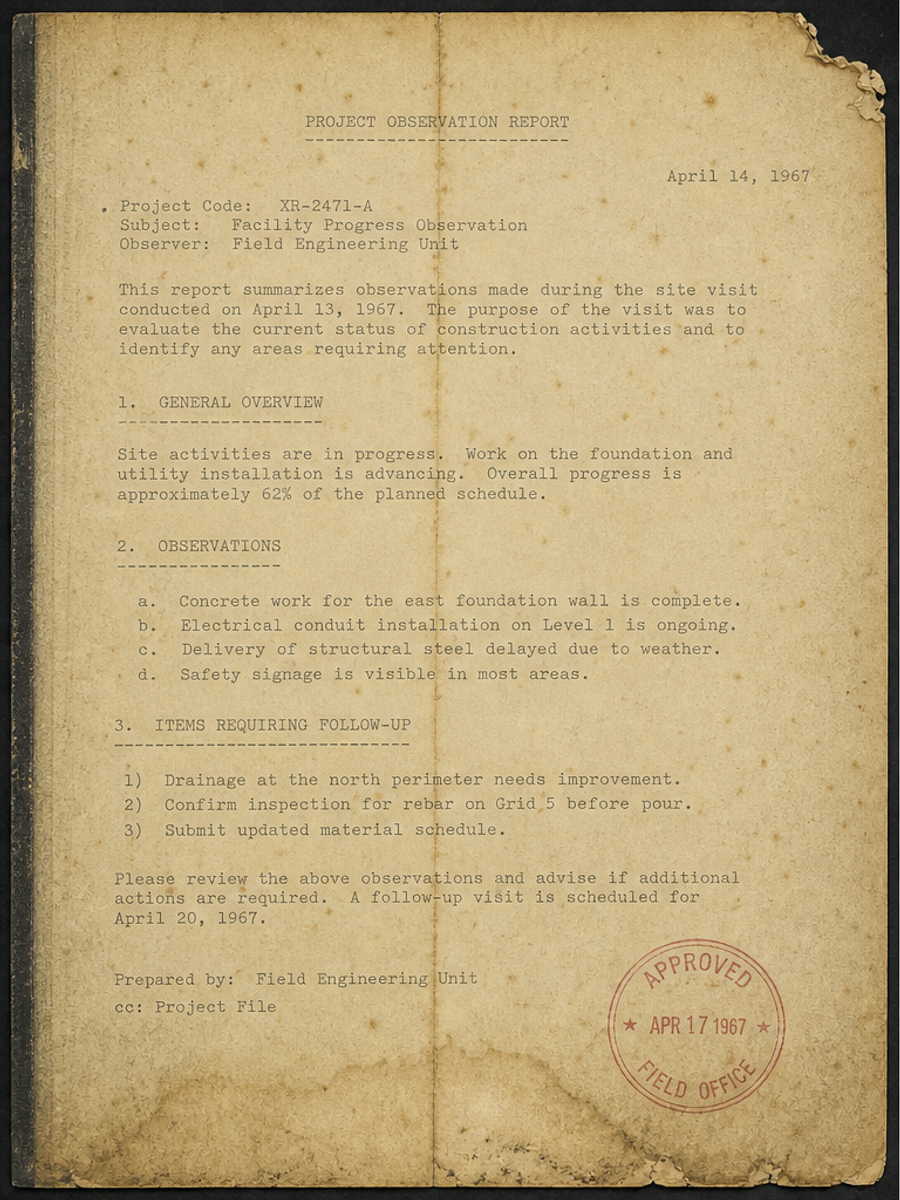
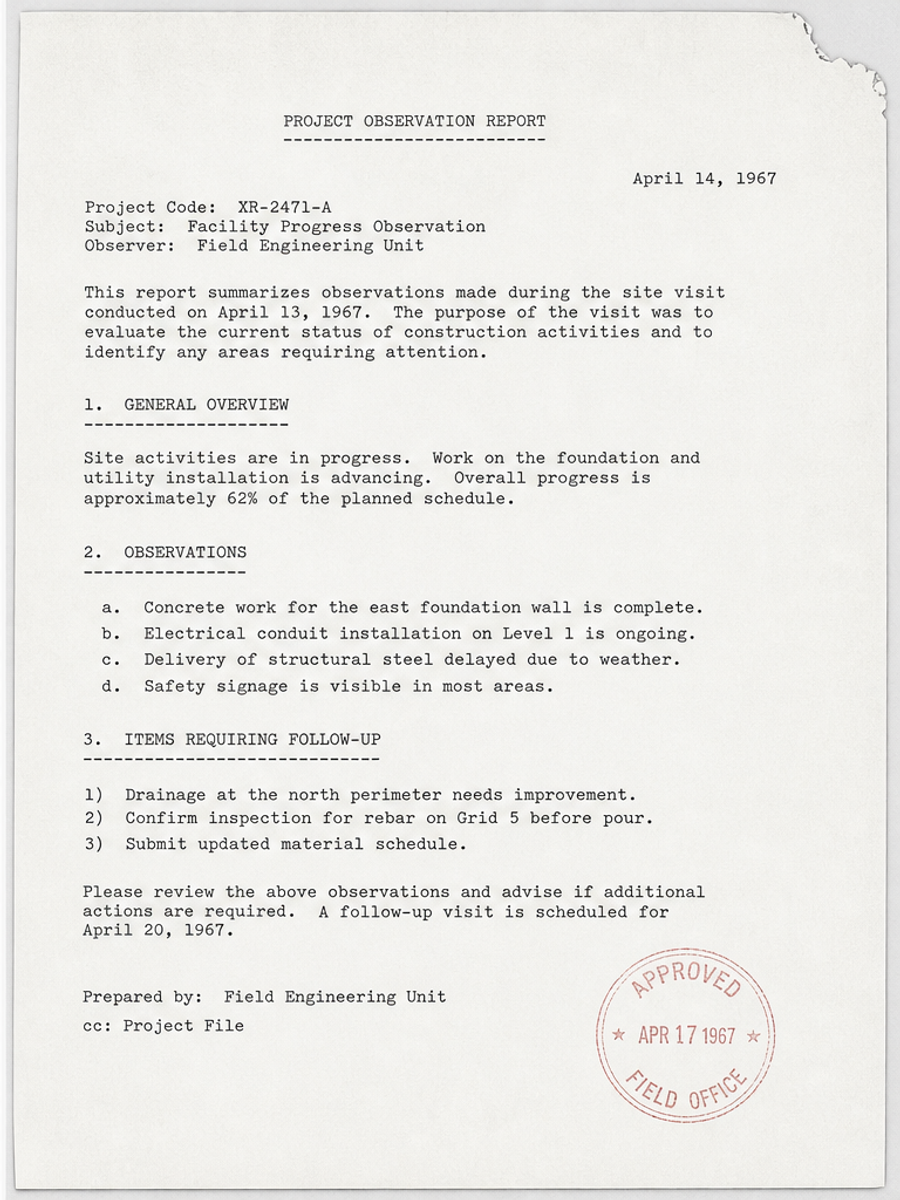
Faded textGray backgroundLow contrastLight photocopyPhone scan shadowsOld scanned pages
How it works
- Upload your scanned PDF
- Choose the page that looks too light
- Describe what should be darker or clearer
- Generate a new visual page
- Review and export an image-based PDF
Upload scanned PDF → choose the light page → describe what should be darker → generate a visual page → export an image-based PDF
Make visible scan content darker without changing the text layer.
- Make faded scanned PDF text darker and easier to read.
- Increase contrast while keeping the original layout in place.
- Reduce gray backgrounds, uneven scan lighting, and phone scan shadows.
- Clean old photocopies without turning the page into OCR text.
- Export an image-based PDF page for review and sharing.
Example prompts for darkening scanned PDFs
Tell AI what should become darker or clearer, and what should stay in the same place.
Increase contrast and remove the gray background from this scanned page.
Darken the faint handwriting without changing the form structure.
Clean up shadows and make the page look like a clearer black-and-white scan.
Make this old photocopy easier to read, but keep all visible content in the same place.
Sharpen the light text and reduce background noise.
Best for
- faded scanned PDF pages
- light photocopies
- low-contrast scans
- phone scans with shadows
- old forms and handwritten pages
Not for
- creating selectable or searchable text
- OCR scanned PDF conversion
- recovering details that are not visible
- making a scanned PDF fully editable
- official documents that require exact verification
Different from scanned PDF editing
This page focuses on faded text, gray backgrounds, and scan contrast. Edit scanned PDF is also for cleanup and enhancement, not OCR or exact text, logo, signature, image, or date editing.
Different from OCR or Acrobat
OCR is better for recognizing searchable text, and Acrobat is better for PDFs with real text layers. RedesignPDF is better when you want the scanned page to look darker and clearer, then export an image-based PDF.
Use cases
- Make faded scanned PDF text darker and easier to read.
- Increase contrast, reduce gray backgrounds, and clean uneven scan lighting.
- Improve low contrast scans, light photocopies, old scanned pages, and phone scan shadows.
Important limitations
- This changes the visual appearance of the selected page.
- The exported PDF is image-based, so text is not selectable or searchable.
- It cannot reliably recover details that are not visible in the original scan.
FAQ
Can I darken a scanned PDF online?
Yes. Upload the PDF, choose a page, and describe that you want the scan darker, clearer, or higher contrast.
Will the text become selectable after darkening?
No. The output is image-based. The page may look clearer, but this does not create a searchable or selectable text layer.
Is this OCR?
No. OCR recognizes text. RedesignPDF changes the visual appearance of the page.
Can it remove gray backgrounds from scanned PDFs?
It can often reduce gray backgrounds and improve contrast, but results depend on the original scan quality.
Can it fix blurry scanned PDFs?
It may improve mildly blurry scans, but it cannot reliably recover details that are not visible in the original page.
Is the exported PDF editable?
No. It exports an image-based PDF, not a fully editable source document.