What readers usually run into
- OCR falla con páginas grises
- Texto inclinado
- Bajo contraste
- Escaneos antiguos
Why OCR needs a clean image
OCR depends on character shapes. Gray haze, skew, compression blocks, shadows, and weak contrast all make characters harder to separate from the page. Cleaning the scan can give OCR a better image to analyze, but it does not remove the need to review OCR output.
Prepare one page first
Choose a representative page before processing a whole file. Ask for background reduction, darker text, and layout preservation. If the page contains tables, formulas, columns, or footnotes, tell the prompt to preserve those structures instead of trying to simplify them.
Run OCR separately
After exporting the cleaned image-based PDF, use a dedicated OCR tool if you need searchable text. Keep the original scan and compare OCR text against both the original and the cleaned version.
Know when cleanup is not enough
If the scan is severely blurred, cropped, or photographed at too low a resolution, cleanup may not produce reliable OCR. In that case, rescanning at better quality is usually the better path.
What to clean before OCR
Focus on problems that confuse character recognition: gray backgrounds, shadows across text, skewed lines, feeder streaks, low contrast, and compression blocks. Do not ask the cleanup step to simplify the page or remove content that OCR may need. Tables, formulas, footnotes, captions, and page numbers should remain visible even if they make the page look less minimal.
How to test one page
Pick a page with small text, columns, or tables rather than the cleanest page in the file. Clean it, export it, run OCR, and inspect the output. If OCR still drops punctuation or merges columns, adjust the scan cleanup prompt or rescan. Testing the hard page first prevents wasting time on a whole file that still fails where it matters.
Why review is still required
OCR can produce confident-looking mistakes. It may confuse 0 and O, 1 and l, decimal points, footnote markers, or table columns. A cleaner scan can reduce those errors but cannot eliminate them. Keep the cleanup result, the OCR output, and the original scan available until someone has reviewed the important content.
When to rescan before OCR
Rescan before OCR when the page is cropped, motion-blurred, very low resolution, or photographed at a steep angle. Cleanup can reduce noise, but it cannot create reliable characters from missing pixels. If the paper is available, improve the capture first: flatten the page, increase light, avoid compression, and check small text. RedesignPDF is most useful after you have captured enough real detail for cleanup to preserve.
Example OCR-preparation prompt
A practical prompt is: "Prepare this scanned PDF for OCR by reducing gray background, cleaning shadows, improving text contrast, and preserving columns, tables, footnotes, formulas, and page numbers." That wording keeps the visual page faithful to the original while making it easier for a later OCR tool to analyze. Avoid asking RedesignPDF to produce searchable text; that belongs to the OCR step.
Related example to compare
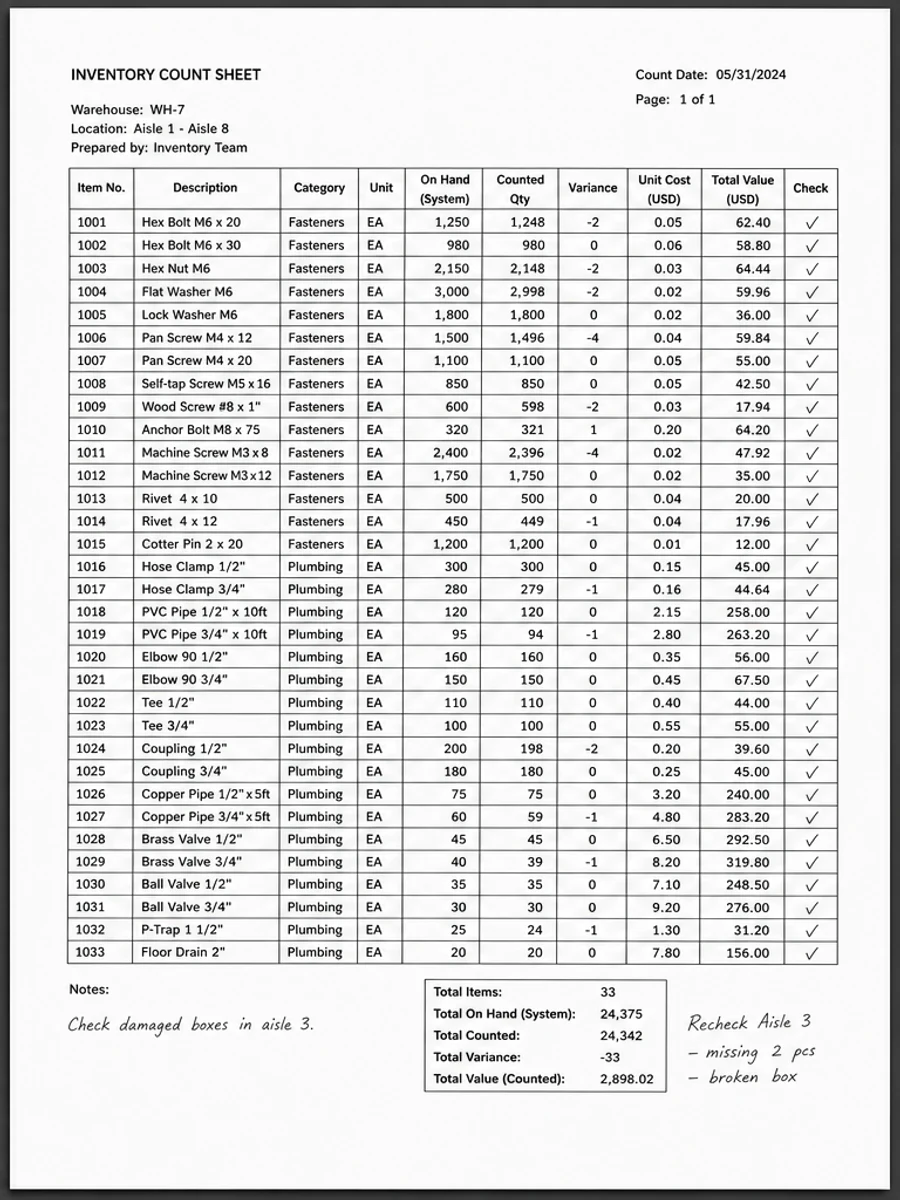
Academic paper and scanned table examples are useful OCR-preparation references because they contain small text, columns, formulas, and structured layouts. If those elements survive cleanup, the workflow is more likely to help a later OCR step. If they become weaker, reduce cleanup strength before processing the rest of the file. Keep the hard page as your benchmark and recheck it after export, not only before OCR begins.
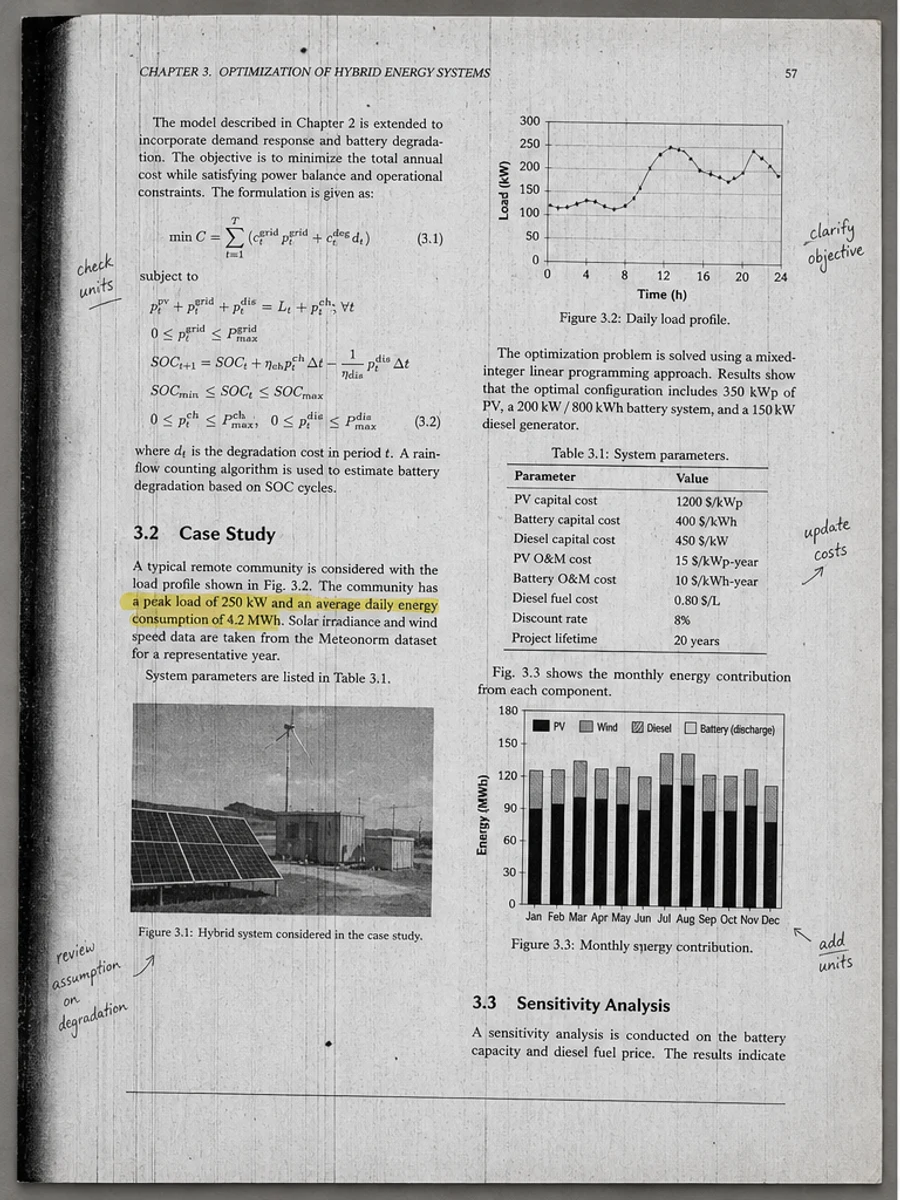
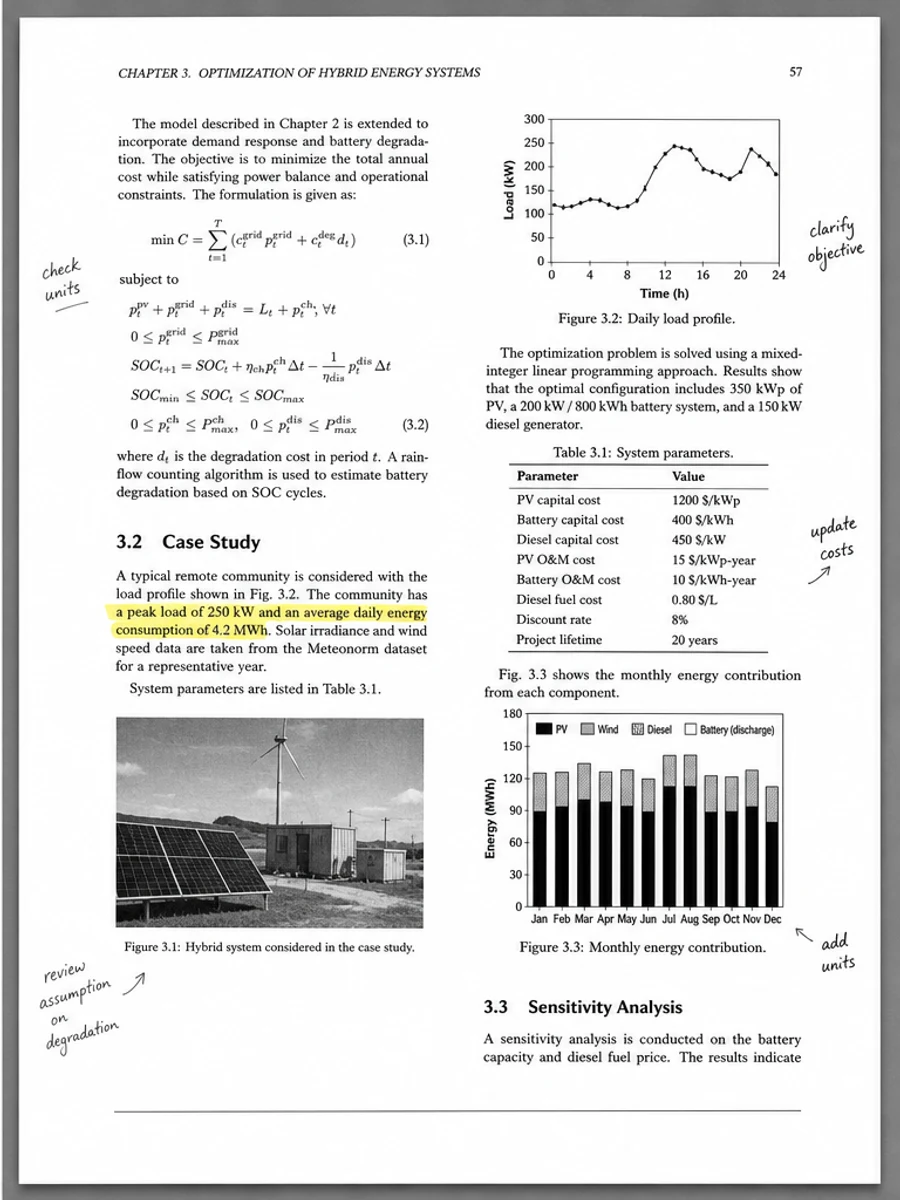
Inline before and after example: Mejorar un escaneo de artículo académico
Step-by-step tutorial
- Abre el PDF escaneado.
- Elige primero una página donde se vea claramente el problema: preparar PDFs escaneados antes de OCR.
- Usa un prompt conservador de legibilidad.
- Compara antes y después.
- Revisa texto, números, fechas y tablas importantes.
- Exporta cuando el resultado sea aceptable.
Prompts you can paste
01Limpia esta página de PDF escaneado y corrige preparar PDFs escaneados antes de OCR; reduce fondo gris, sombras, manchas y ruido manteniendo el diseño original.
02Mejora suavemente la legibilidad: oscurece texto tenue, limpia el fondo y conserva escritura manual, sellos, tablas y marcas.
03Usa un tratamiento conservador, sin crear capa OCR ni cambiar la estructura de la página.
When RedesignPDF is a good fit
- Páginas escaneadas con texto visible
- Documentos planos o basados en imagen
- Archivos donde el objetivo es mejorar la legibilidad visual
When it is not the right tool
- Edición precisa de capas de texto PDF
- Restauración legal certificada
- Extracción automática de datos sin revisión
Errores comunes
- Blanquear demasiado la página hasta perder líneas finas.
- Confundir limpieza visual con OCR o conversión de texto.
- Exportar sin revisar números, fechas, tablas y escritura manual.
Related reading
FAQ
¿RedesignPDF puede corregir preparar PDFs escaneados antes de OCR?
Puede mejorar la imagen visible de la página escaneada. Revisa texto, fechas, importes y tablas antes de exportar.
¿El PDF exportado tendrá texto seleccionable?
La exportación puede ser basada en imagen. Usa OCR aparte si necesitas texto buscable o seleccionable.
¿Sirve para documentos oficiales?
Úsalo con cautela. RedesignPDF mejora legibilidad, no es restauración certificada de documentos.
Conclusion
If your goal is a clearer scanned PDF while keeping the original layout, start with a conservative prompt, process one page, and review text, tables, numbers, handwriting, and stamps before exporting. If you need editable text, PDF-to-Word conversion, form filling, or precise text-layer editing, use OCR, a PDF editor, or a better rescan instead.
Upload scanned PDF