What readers usually run into
- Schräge Seiten
- Seitenschatten
- Bewegungsunschärfe
- Ungleichmäßiges Licht
What makes phone scans difficult
Phone scans often include side shadows, curved paper, perspective distortion, motion blur, and lighting that changes across the page. Those issues make the scan look unprofessional and can make small text or handwriting hard to verify.
Use a page-specific prompt
Tell RedesignPDF what is visible: shadows near the edge, curled paper, low contrast, or a dark background. Ask it to clean those issues while keeping the page layout and all handwriting, stamps, and marks unchanged.
When cleanup helps
Cleanup is useful when the phone scan is readable but messy. It is a good fit for quick forms, classroom documents, receipts, field notes, and paperwork that cannot be rescanned easily.
When to reshoot instead
If the page is cropped, text is out of focus, or motion blur hides characters, take a new photo when possible. Better source capture beats any cleanup workflow.
Before and after checks for phone scans
The after image should reduce the obvious phone-capture artifacts while keeping the page believable. Shadows should no longer cover text, paper tone should be more even, and handwriting should remain recognizable. Be careful with perspective correction: if the page becomes visually straighter but small labels look distorted, the result may be less useful than the original.
How to prompt for shadows and lighting
Name where the shadow appears. A prompt like "reduce the dark shadow along the left edge" is more useful than "clean this scan." If the paper is curled, mention uneven lighting and page curl. If the phone flash created glare, ask to reduce glare while preserving text and stamps. Specific visual defects help the generation avoid broad, risky edits.
What RedesignPDF should not be used for
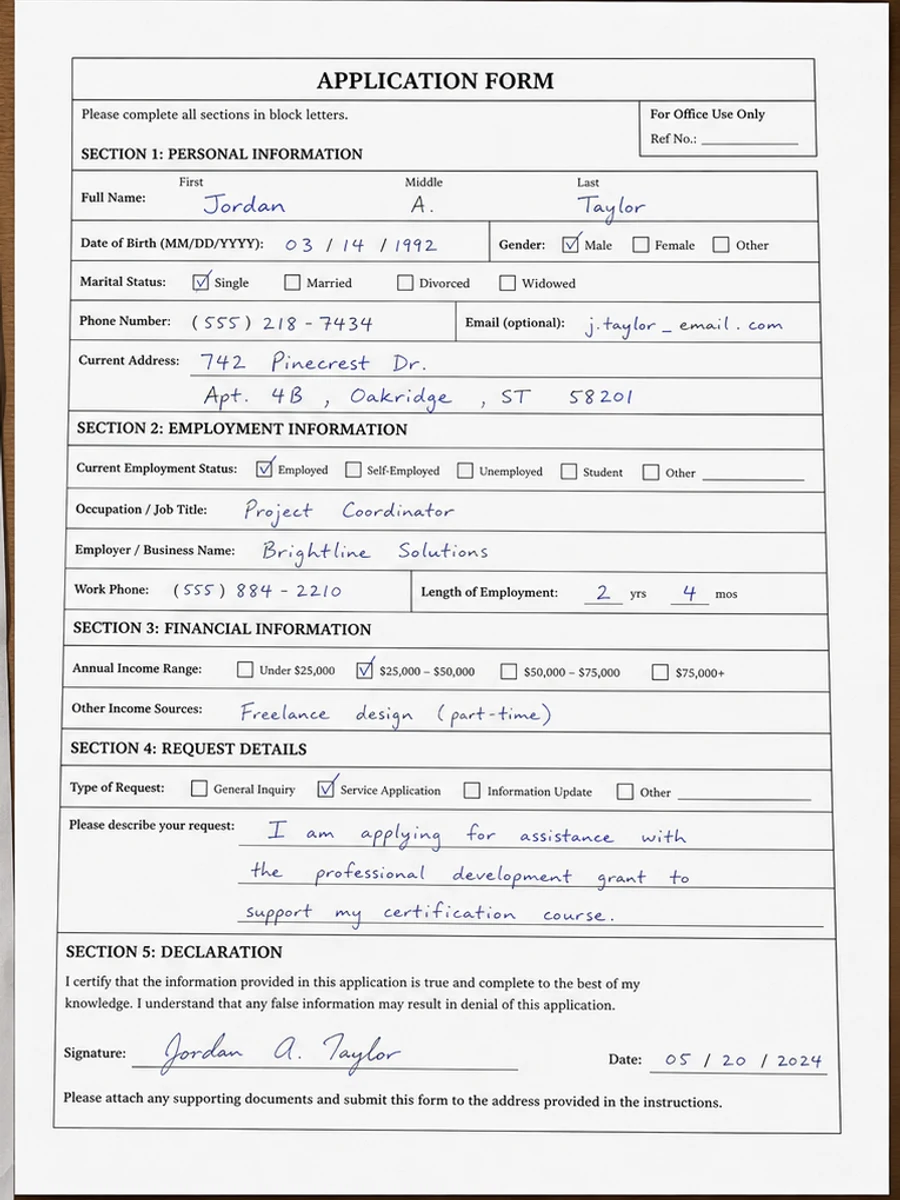
Do not use visual cleanup to change the content of a photographed form, repair missing page edges, or certify that a phone scan is equivalent to a flatbed scan. If a document will be used in a formal process, rescan it properly when possible. Use the cleaned version as a readable copy, not as evidence that the capture was perfect.
Quick capture fixes before uploading
If you still have the paper, try a better capture before relying on cleanup. Move away from direct overhead shadows, flatten the page with a clean weight outside the content area, and retake the photo with the camera parallel to the paper. Check the corners and the smallest text before making a PDF. These steps often produce a cleaner result than any after-the-fact correction.
Example prompt for phone scans
Use a prompt that describes the capture problem: "Reduce the dark side shadow, even out lighting, improve text contrast, and preserve handwriting, stamps, form fields, and the original layout." If the page is angled, add "make the page easier to read without inventing missing edges." This keeps the output grounded in what is actually visible instead of asking for a perfect scan from an imperfect photo.
Related example to compare
A phone-scan example is most helpful when you inspect the shadowed edge and the smallest handwriting. If the example after image keeps those details readable, use the same conservative language. If your source photo is more blurred or cropped than the example, reshooting may be the better path. Do not let cleanup hide capture mistakes; fix the source when you can, then clean the better scan.
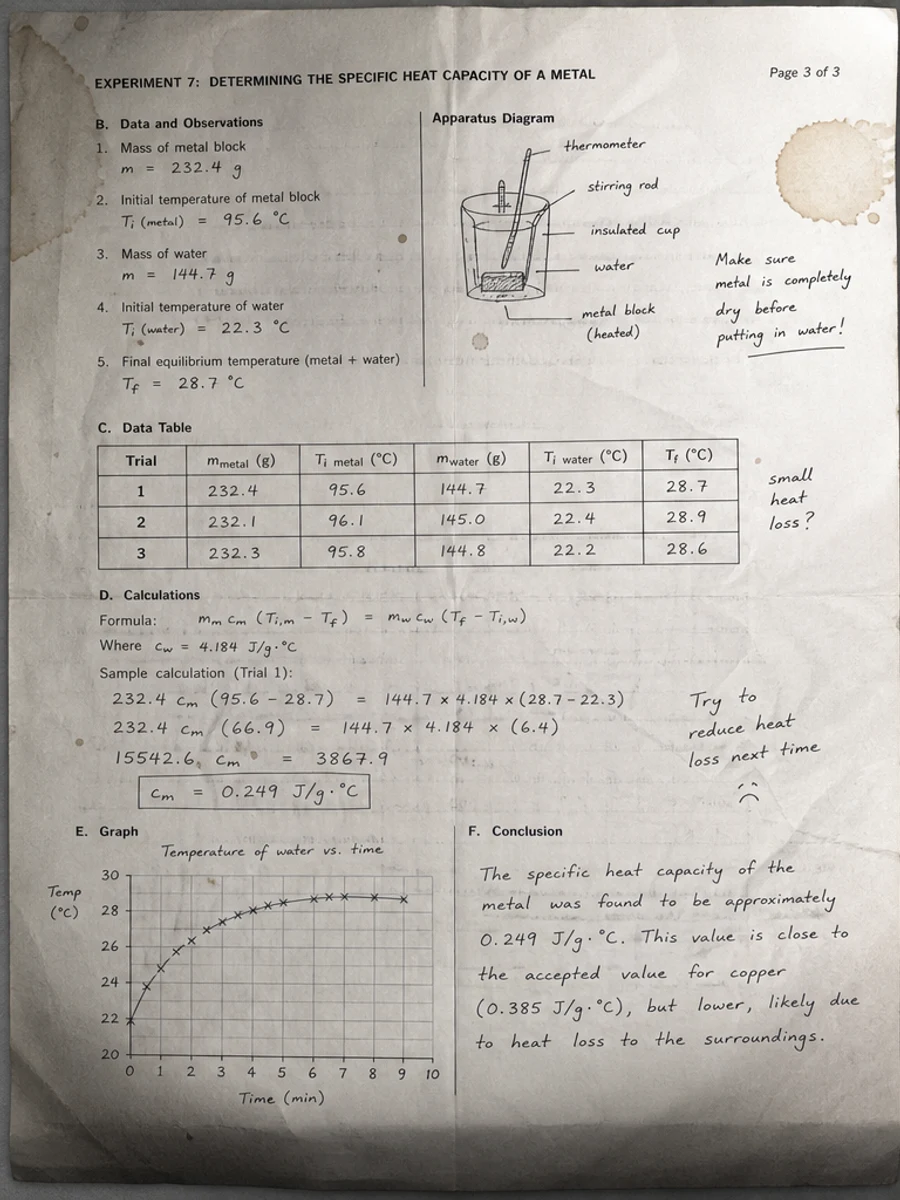
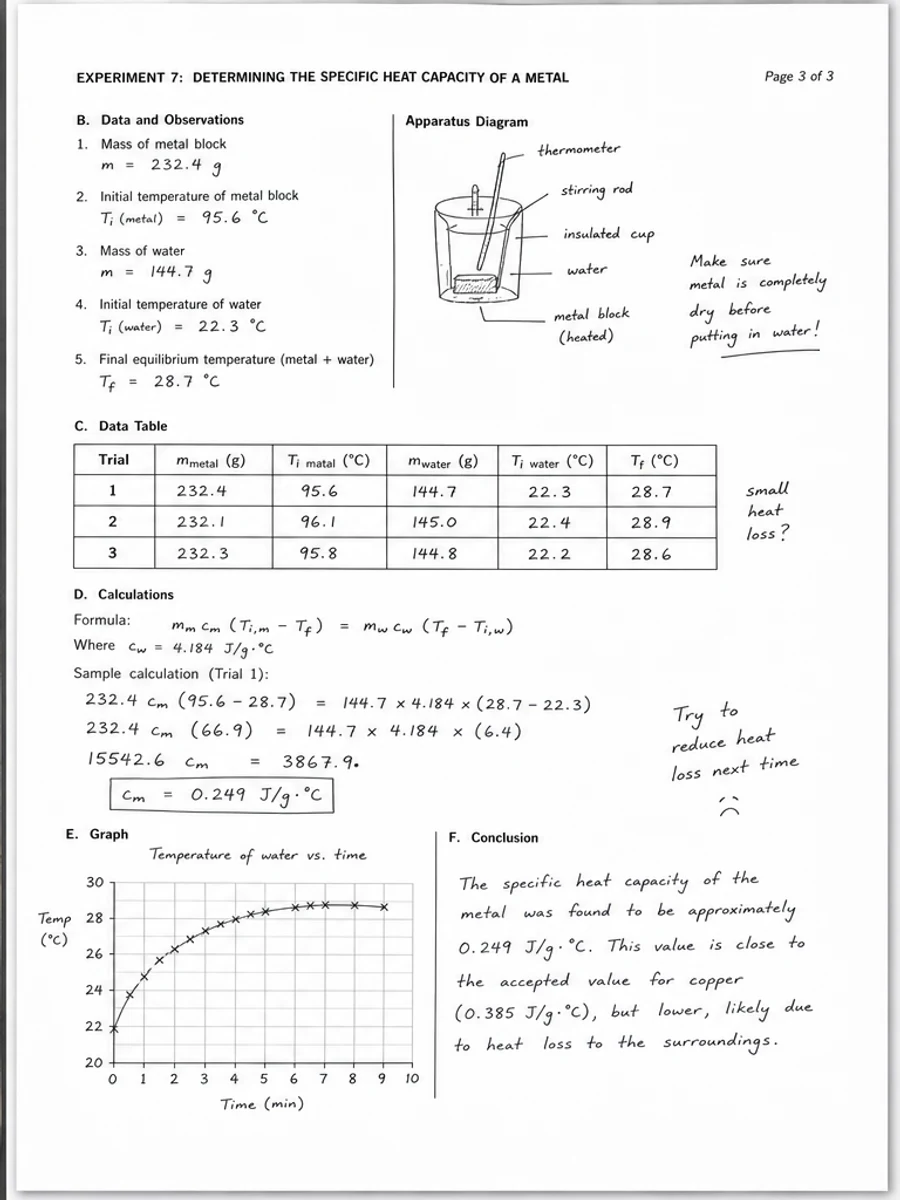
Inline before and after example: Eine mit dem Handy gescannte PDF-Seite bereinigen
Step-by-step tutorial
- Öffne das gescannte PDF.
- Wähle zuerst eine Seite mit dem Problem „Probleme mit Handy-gescannten PDFs“.
- Nutze einen konservativen Prompt zur Lesbarkeitsverbesserung.
- Vergleiche Vorher und Nachher.
- Prüfe wichtige Texte, Zahlen, Daten und Tabellen.
- Exportiere erst, wenn das Ergebnis passt.
Prompts you can paste
01Bereinige diese gescannte PDF-Seite und verbessere Probleme mit Handy-gescannten PDFs; reduziere grauen Hintergrund, Schatten, Flecken und Rauschen bei gleichem Layout.
02Verbessere die Lesbarkeit vorsichtig: blassen Text abdunkeln, Hintergrund säubern und Handschrift, Stempel, Tabellen und Markierungen erhalten.
03Konservativ verarbeiten, keine OCR-Textebene erstellen und die Seitenstruktur nicht verändern.
When RedesignPDF is a good fit
- Gescannte PDF-Seiten mit sichtbarem Text
- Flache oder bildbasierte Dokumente
- Dateien, bei denen visuelle Lesbarkeit das Ziel ist
When it is not the right tool
- Präzise Bearbeitung von PDF-Textebenen
- Zertifizierte rechtliche Restaurierung
- Automatische Datenerfassung ohne Prüfung
Häufige Fehler
- Die Seite so stark aufhellen, dass feine Linien verschwinden.
- Visuelle Bereinigung mit OCR oder Textkonvertierung verwechseln.
- Exportieren, ohne Zahlen, Daten, Tabellen und Handschrift zu prüfen.
Related reading
FAQ
Kann RedesignPDF Probleme mit Handy-gescannten PDFs verbessern?
RedesignPDF kann das sichtbare Bild der gescannten Seite verbessern. Prüfe wichtige Texte, Daten, Beträge und Tabellen vor dem Export.
Hat der Export auswählbaren Text?
Der Export kann bildbasiert sein. Nutze OCR separat, wenn du durchsuchbaren oder auswählbaren Text brauchst.
Ist das für offizielle Dokumente geeignet?
Nur mit Vorsicht. RedesignPDF dient der Lesbarkeit, nicht der zertifizierten Dokumentrestaurierung.
Conclusion
If your goal is a clearer scanned PDF while keeping the original layout, start with a conservative prompt, process one page, and review text, tables, numbers, handwriting, and stamps before exporting. If you need editable text, PDF-to-Word conversion, form filling, or precise text-layer editing, use OCR, a PDF editor, or a better rescan instead.
Upload scanned PDF