What readers usually run into
- ページの傾き
- 側面の影
- 手ぶれ
- 照明ムラ
What makes phone scans difficult
Phone scans often include side shadows, curved paper, perspective distortion, motion blur, and lighting that changes across the page. Those issues make the scan look unprofessional and can make small text or handwriting hard to verify.
Use a page-specific prompt
Tell RedesignPDF what is visible: shadows near the edge, curled paper, low contrast, or a dark background. Ask it to clean those issues while keeping the page layout and all handwriting, stamps, and marks unchanged.
When cleanup helps
Cleanup is useful when the phone scan is readable but messy. It is a good fit for quick forms, classroom documents, receipts, field notes, and paperwork that cannot be rescanned easily.
When to reshoot instead
If the page is cropped, text is out of focus, or motion blur hides characters, take a new photo when possible. Better source capture beats any cleanup workflow.
Before and after checks for phone scans
The after image should reduce the obvious phone-capture artifacts while keeping the page believable. Shadows should no longer cover text, paper tone should be more even, and handwriting should remain recognizable. Be careful with perspective correction: if the page becomes visually straighter but small labels look distorted, the result may be less useful than the original.
How to prompt for shadows and lighting
Name where the shadow appears. A prompt like "reduce the dark shadow along the left edge" is more useful than "clean this scan." If the paper is curled, mention uneven lighting and page curl. If the phone flash created glare, ask to reduce glare while preserving text and stamps. Specific visual defects help the generation avoid broad, risky edits.
What RedesignPDF should not be used for
Do not use visual cleanup to change the content of a photographed form, repair missing page edges, or certify that a phone scan is equivalent to a flatbed scan. If a document will be used in a formal process, rescan it properly when possible. Use the cleaned version as a readable copy, not as evidence that the capture was perfect.
Quick capture fixes before uploading
If you still have the paper, try a better capture before relying on cleanup. Move away from direct overhead shadows, flatten the page with a clean weight outside the content area, and retake the photo with the camera parallel to the paper. Check the corners and the smallest text before making a PDF. These steps often produce a cleaner result than any after-the-fact correction.
Example prompt for phone scans
Use a prompt that describes the capture problem: "Reduce the dark side shadow, even out lighting, improve text contrast, and preserve handwriting, stamps, form fields, and the original layout." If the page is angled, add "make the page easier to read without inventing missing edges." This keeps the output grounded in what is actually visible instead of asking for a perfect scan from an imperfect photo.
Related example to compare
A phone-scan example is most helpful when you inspect the shadowed edge and the smallest handwriting. If the example after image keeps those details readable, use the same conservative language. If your source photo is more blurred or cropped than the example, reshooting may be the better path. Do not let cleanup hide capture mistakes; fix the source when you can, then clean the better scan.
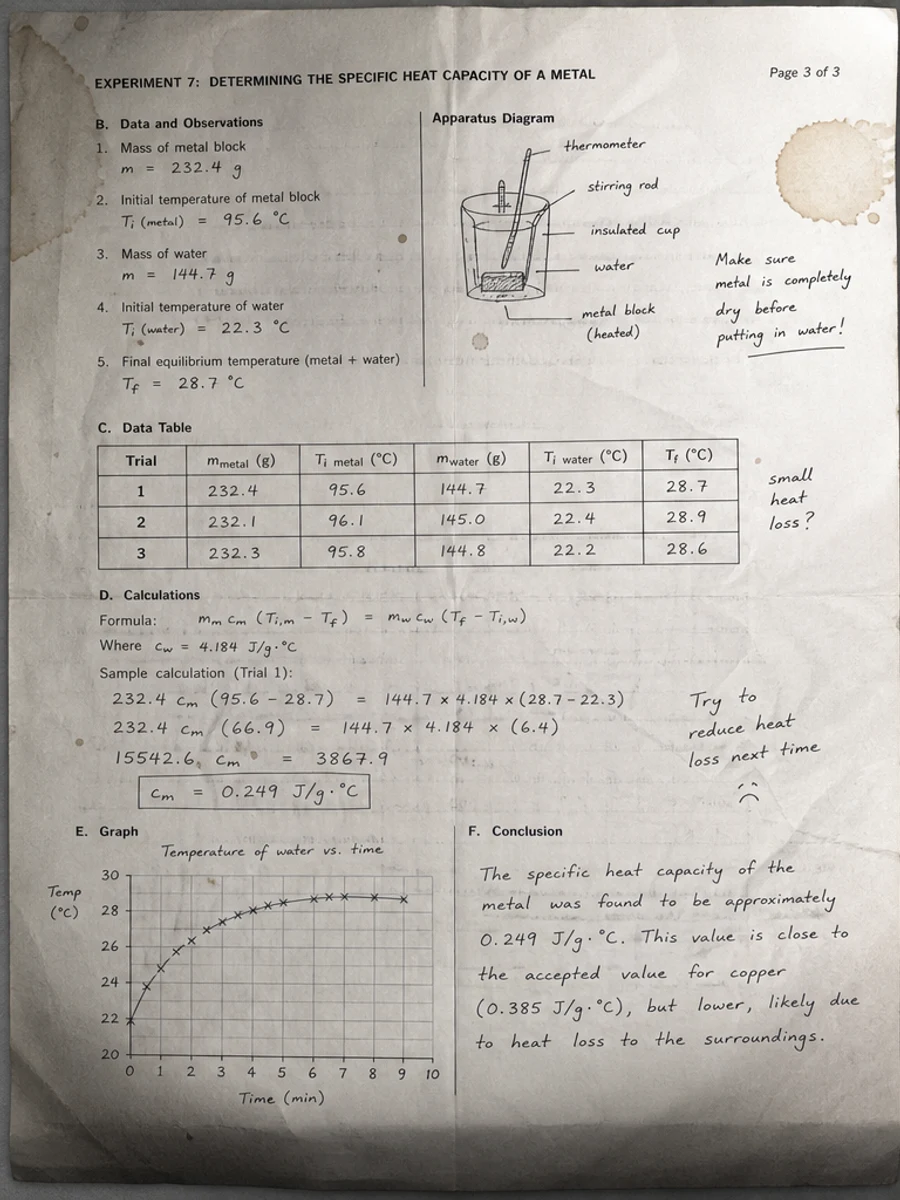
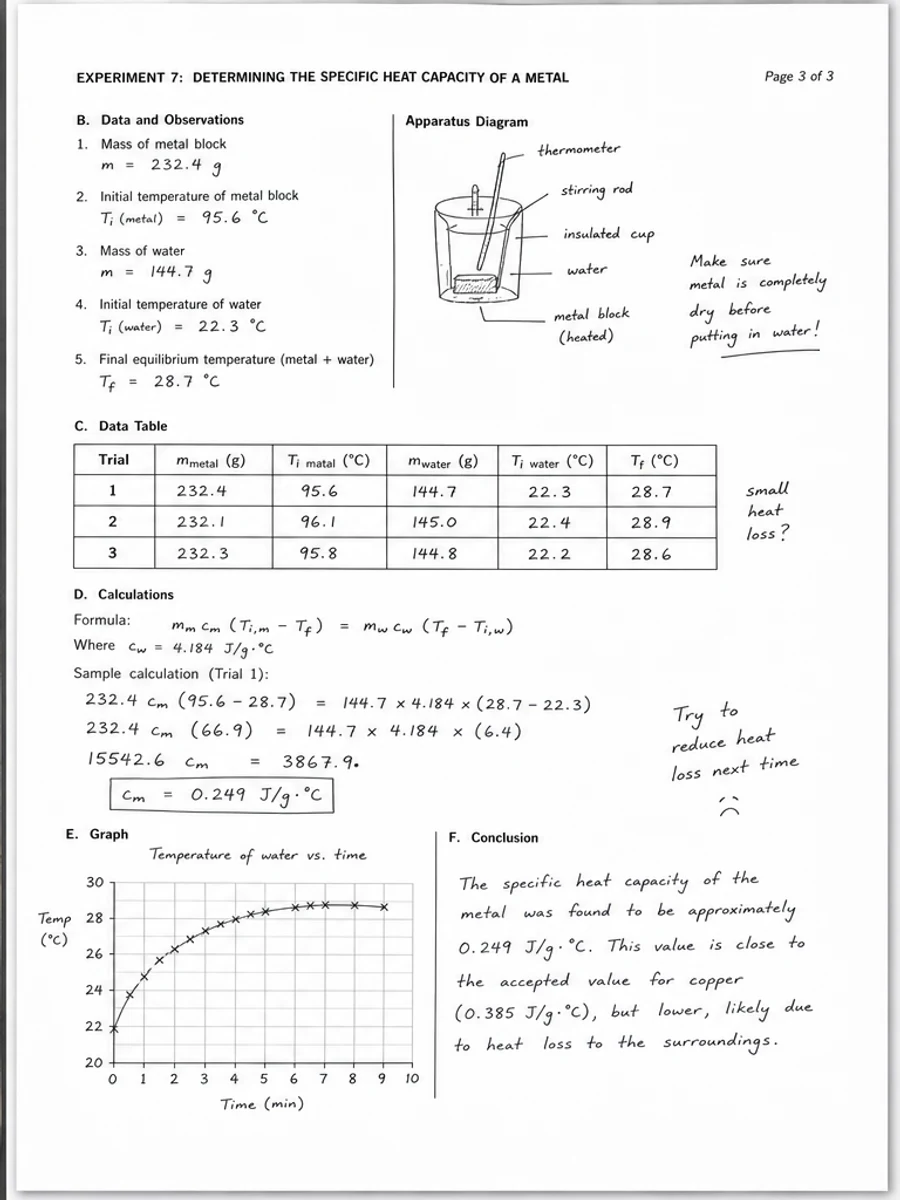
Inline before and after example: スマホで撮ったスキャンPDFページを補正する
Step-by-step tutorial
- スキャンPDFを開きます。
- まず「スマホスキャンPDFの問題」が最も目立つページを選びます。
- 控えめな読みやすさ改善プロンプトを使います。
- 処理前後を比較します。
- 重要な文字、数字、日付、表を確認します。
- 結果に問題がなければ書き出します。
Prompts you can paste
01このスキャンPDFページを補正し、スマホスキャンPDFの問題を改善してください。灰色背景、影、汚れ、ノイズを減らし、元のレイアウトを維持してください。
02読みやすさを少しだけ改善し、薄い文字を濃くし、背景を整え、手書き、印章、表、マークを残してください。
03控えめに処理し、OCR文字レイヤーは作らず、ページ構造を変えず、書き出し前に確認しやすくしてください。
When RedesignPDF is a good fit
- 文字が見えているスキャンPDFページ
- フラット化された画像ベース文書
- 視覚的な読みやすさを改善したいファイル
When it is not the right tool
- PDFの文字レイヤーを正確に編集する作業
- 公的・法的な認証レベルの復元
- 確認なしの自動データ抽出
よくある失敗
- 白くしすぎて細い線や薄い印が消える。
- 視覚補正をOCRや文字変換と混同する。
- 数字、日付、表、手書きを確認せずに書き出す。
Related reading
FAQ
RedesignPDFでスマホスキャンPDFの問題を改善できますか?
スキャンページの見た目を改善できます。書き出す前に重要な文字、日付、金額、表を確認してください。
書き出したPDFの文字は選択できますか?
書き出しは画像ベースになる場合があります。検索可能または選択可能な文字が必要なら、別途OCRを使ってください。
公的な文書に使えますか?
注意が必要です。RedesignPDFは読みやすさの補正用で、認証済みの文書復元ではありません。
Conclusion
If your goal is a clearer scanned PDF while keeping the original layout, start with a conservative prompt, process one page, and review text, tables, numbers, handwriting, and stamps before exporting. If you need editable text, PDF-to-Word conversion, form filling, or precise text-layer editing, use OCR, a PDF editor, or a better rescan instead.
Upload scanned PDF