What readers usually run into
- 小さな数字
- 薄い罫線
- OCR表が崩れる
- 低コントラストのセル
Why tables need extra care
Tables rely on alignment. If cleanup shifts a column, weakens a grid line, or changes small digits, the page may look cleaner but become less useful. Table scans also often contain tiny numbers that are easy to damage with aggressive contrast changes.
Specify layout preservation
Your prompt should say to keep row alignment, column widths, grid lines, and handwriting unchanged. Ask for clearer text and background cleanup without table extraction, reformatting, or interpretation.
Review small values
After generation, zoom into the smallest numbers, totals, decimal points, check marks, and handwritten notes. Compare suspicious values against the original before exporting.
What this is not
This workflow does not convert a scanned table into Excel, CSV, or editable cells. It produces a cleaner image-based PDF page for reading, sharing, or later OCR with a dedicated tool.
Before and after evidence for tables
The best before and after comparison is a local zoom on the densest part of the table. Check row labels, small numbers, decimal points, grid intersections, and handwritten ticks. A clean-looking page is not enough if a faint vertical rule disappears or a decimal point becomes ambiguous. For tables, usefulness depends on preserving structure as much as improving contrast.
How to phrase table prompts
Use language that forbids restructuring. Ask to preserve row alignment, column widths, grid lines, and all values. If the table has handwritten marks, mention them. If it has formulas or footnotes, mention those too. Avoid prompts that say "recreate," "extract," or "convert" unless you are using a different tool designed for data extraction.
When OCR or spreadsheet tools come later
If your final goal is spreadsheet data, first create the clearest faithful scan you can, then use a dedicated extraction workflow. Keep the cleaned image as a reference because table extraction often makes mistakes in merged cells, blank cells, and repeated headers. RedesignPDF helps create a readable source image; it does not validate the extracted data.
Table-specific export checklist
Before exporting a cleaned table, inspect the first row, last row, narrowest column, and any cells with small decimals or handwritten corrections. Check whether grid lines still separate values clearly. If the table spans multiple pages, confirm that headers and repeated labels remain consistent. A cleaned table page is successful when it is easier to read without making the reader wonder whether the structure changed.
Example prompt for scanned tables
A table prompt should be strict: "Clean the scanned table, reduce gray background, strengthen small numbers and grid lines, preserve row alignment, column widths, handwritten marks, and all values." Add "do not extract, convert, or reinterpret the table" if there is any risk of confusion. This wording keeps the task visual and helps avoid changes that would make the table look cleaner but less reliable.
Related example to compare
Use a scanned table example to judge whether the after image preserves structure. The grid should still guide the eye, small values should stay separated, and handwritten marks should not become noise. If a result changes the apparent structure, it is not acceptable even if the page background looks cleaner. Accuracy matters more than visual neatness, especially for financial or scientific tables. Recheck totals manually before export or OCR, then keep the original scan.
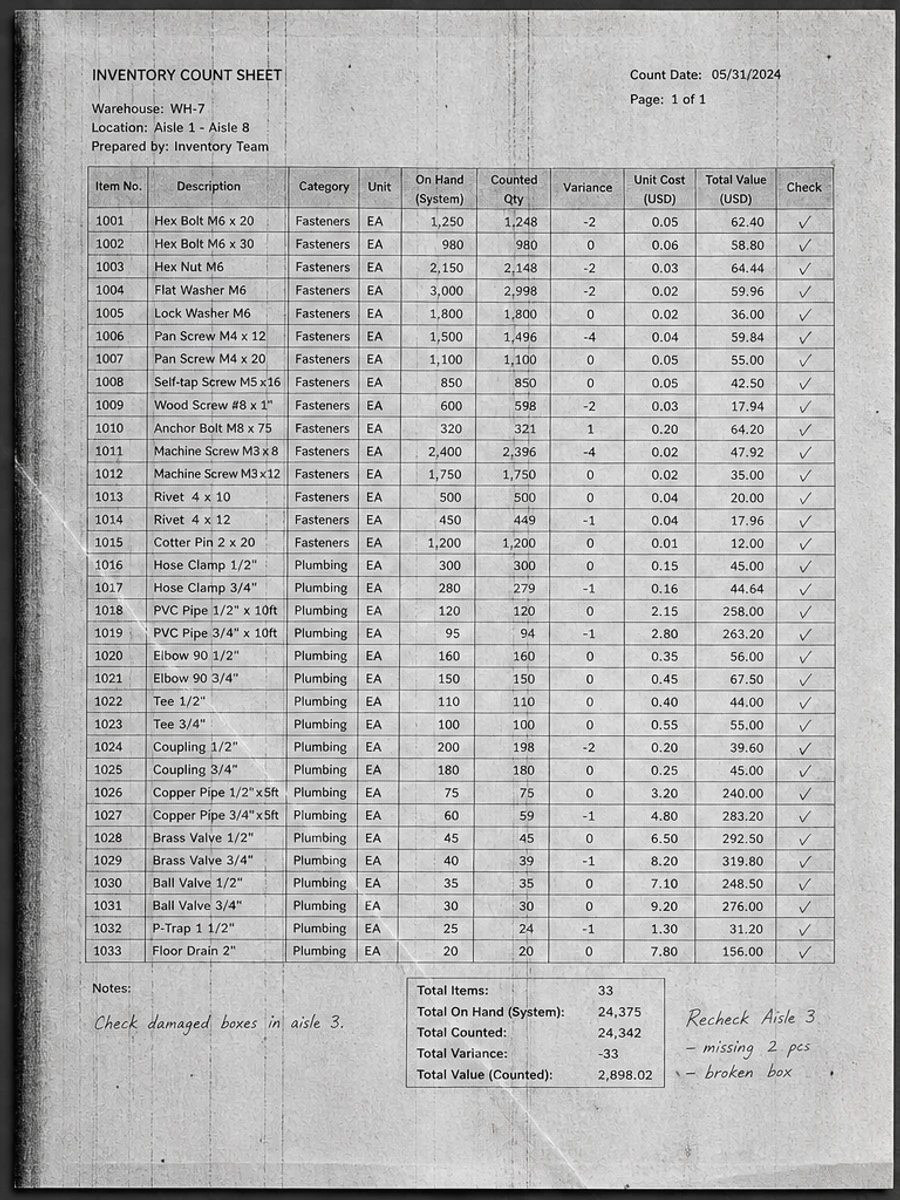
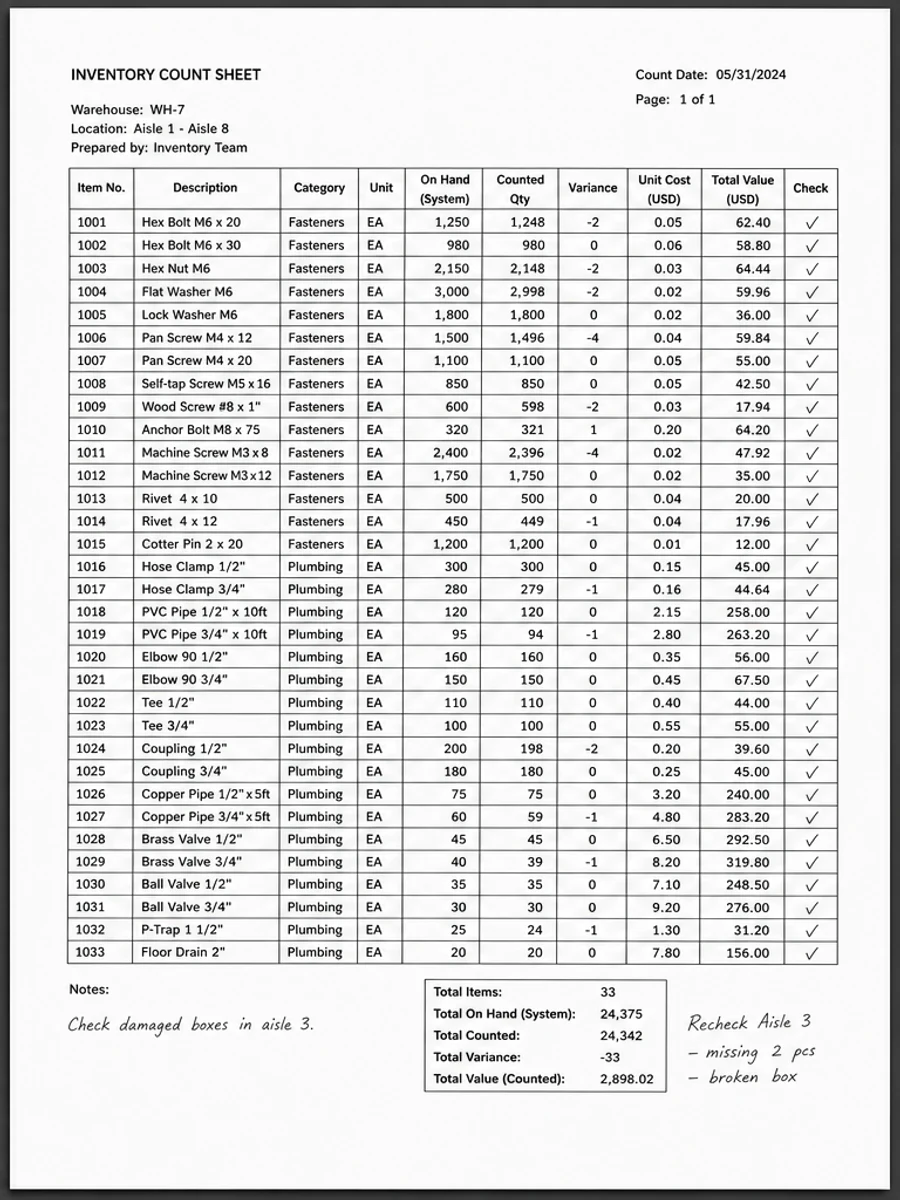
Inline before and after example: レイアウトを変えずにスキャン表をきれいにする
Step-by-step tutorial
- スキャンPDFを開きます。
- まず「レイアウトを保ったスキャン表補正」が最も目立つページを選びます。
- 控えめな読みやすさ改善プロンプトを使います。
- 処理前後を比較します。
- 重要な文字、数字、日付、表を確認します。
- 結果に問題がなければ書き出します。
Prompts you can paste
01このスキャンPDFページを補正し、レイアウトを保ったスキャン表補正を改善してください。灰色背景、影、汚れ、ノイズを減らし、元のレイアウトを維持してください。
02読みやすさを少しだけ改善し、薄い文字を濃くし、背景を整え、手書き、印章、表、マークを残してください。
03控えめに処理し、OCR文字レイヤーは作らず、ページ構造を変えず、書き出し前に確認しやすくしてください。
When RedesignPDF is a good fit
- 文字が見えているスキャンPDFページ
- フラット化された画像ベース文書
- 視覚的な読みやすさを改善したいファイル
When it is not the right tool
- PDFの文字レイヤーを正確に編集する作業
- 公的・法的な認証レベルの復元
- 確認なしの自動データ抽出
よくある失敗
- 白くしすぎて細い線や薄い印が消える。
- 視覚補正をOCRや文字変換と混同する。
- 数字、日付、表、手書きを確認せずに書き出す。
Related reading
FAQ
RedesignPDFでレイアウトを保ったスキャン表補正を改善できますか?
スキャンページの見た目を改善できます。書き出す前に重要な文字、日付、金額、表を確認してください。
書き出したPDFの文字は選択できますか?
書き出しは画像ベースになる場合があります。検索可能または選択可能な文字が必要なら、別途OCRを使ってください。
公的な文書に使えますか?
注意が必要です。RedesignPDFは読みやすさの補正用で、認証済みの文書復元ではありません。
Conclusion
If your goal is a clearer scanned PDF while keeping the original layout, start with a conservative prompt, process one page, and review text, tables, numbers, handwriting, and stamps before exporting. If you need editable text, PDF-to-Word conversion, form filling, or precise text-layer editing, use OCR, a PDF editor, or a better rescan instead.
Upload scanned PDF