What readers usually run into
- 黒い枠
- 送り筋
- 穴の跡
- 灰色コピー背景
Why photocopies degrade
Old photocopies often carry artifacts from the copier itself: dark margins, dust, streaks, punched-hole shadows, crooked placement, and repeated contrast loss. A scan of that photocopy captures all of those problems as part of the page image.
Clean artifacts without erasing context
Ask for copier artifact cleanup rather than a perfect white page. Notes, stamps, diagrams, underlines, and marginal marks may be part of the document. The goal is to lower distraction while keeping content traceable.
Best use cases
This workflow fits worksheets, office copies, archive packets, manuals, handouts, and forms that are readable but visually noisy. It is not appropriate for claiming a document has been officially restored or authenticated.
Batch cautiously
Photocopied packets often vary from page to page. Test one representative page, review the result, then reuse the same style only on pages with similar artifacts.
What a good cleanup preserves
A good after image should still look like the same document. It may have less border noise, fewer streaks, and clearer text, but the notes, diagrams, page order cues, and original spacing should remain. If a worksheet has boxes or a manual has thin illustration lines, those details are part of the content. The cleanup should reduce distractions around them, not erase them.
How to handle mixed-quality packets
Old photocopied packets often include pages from different sources. One page may have black borders, another may have pale text, and another may be skewed. Do not assume one prompt fits every page. Group similar pages, test one page from each group, and keep prompts specific: border cleanup for one group, faded text darkening for another, and streak reduction for feeder-scanned pages.
When to stop cleaning
Stop when the document becomes easier to read and key details remain stable. More cleanup is not always better. If the page starts to lose margin notes, gray pencil marks, or faint diagram labels, the next prompt should reduce intensity. For old copies, a little visible age can be acceptable if the content is clearer and trustworthy.
Common review points for photocopies
Photocopied pages often fail around the edges first. Check headers, page numbers, punched holes, footers, and any content close to the margin. Then inspect the center of the page for feeder streaks or copy noise that crosses text. If the cleanup reduces those distractions without changing the content, the page is ready to export. If it removes marks that identify the source, keep the original and use a lighter cleanup.
Example prompt for old photocopies
Try a prompt such as: "Reduce photocopy haze, dark borders, feeder streaks, fold shadows, and background noise. Preserve typed text, handwritten notes, diagrams, page numbers, punched-hole marks, and the original layout." This prompt avoids pretending the document is new. It asks for a cleaner reading copy while still respecting the artifacts that may help identify where the photocopy came from.
Related example to compare
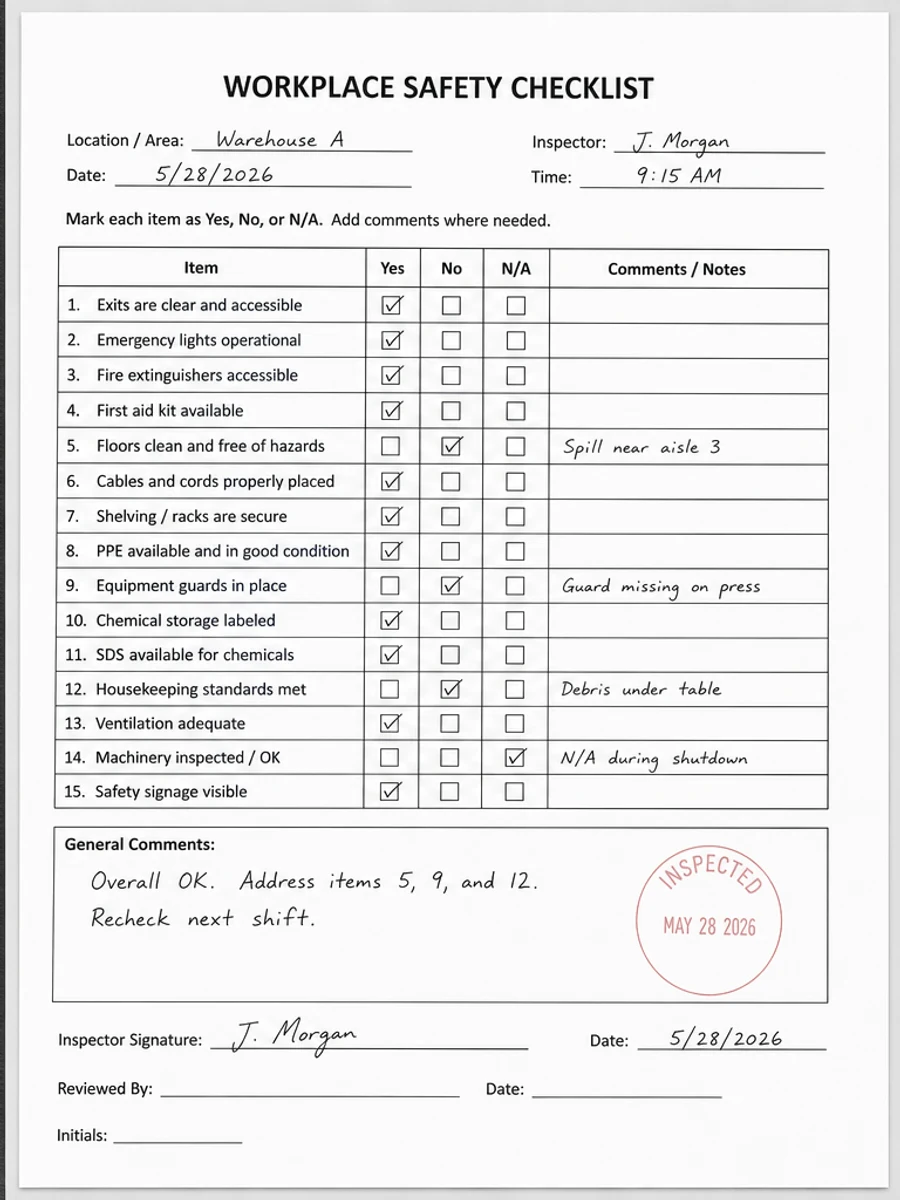
Use a photocopied worksheet or dirty scan example as a reference, not as a promise that every old copy will behave the same way. If your document has marginal notes, stamps, or punched holes, make those preservation requirements explicit. The best result is a cleaner reading page, not a document stripped of all source clues. Review one enlarged corner and one dense paragraph before accepting the export. Keep the original nearby too.
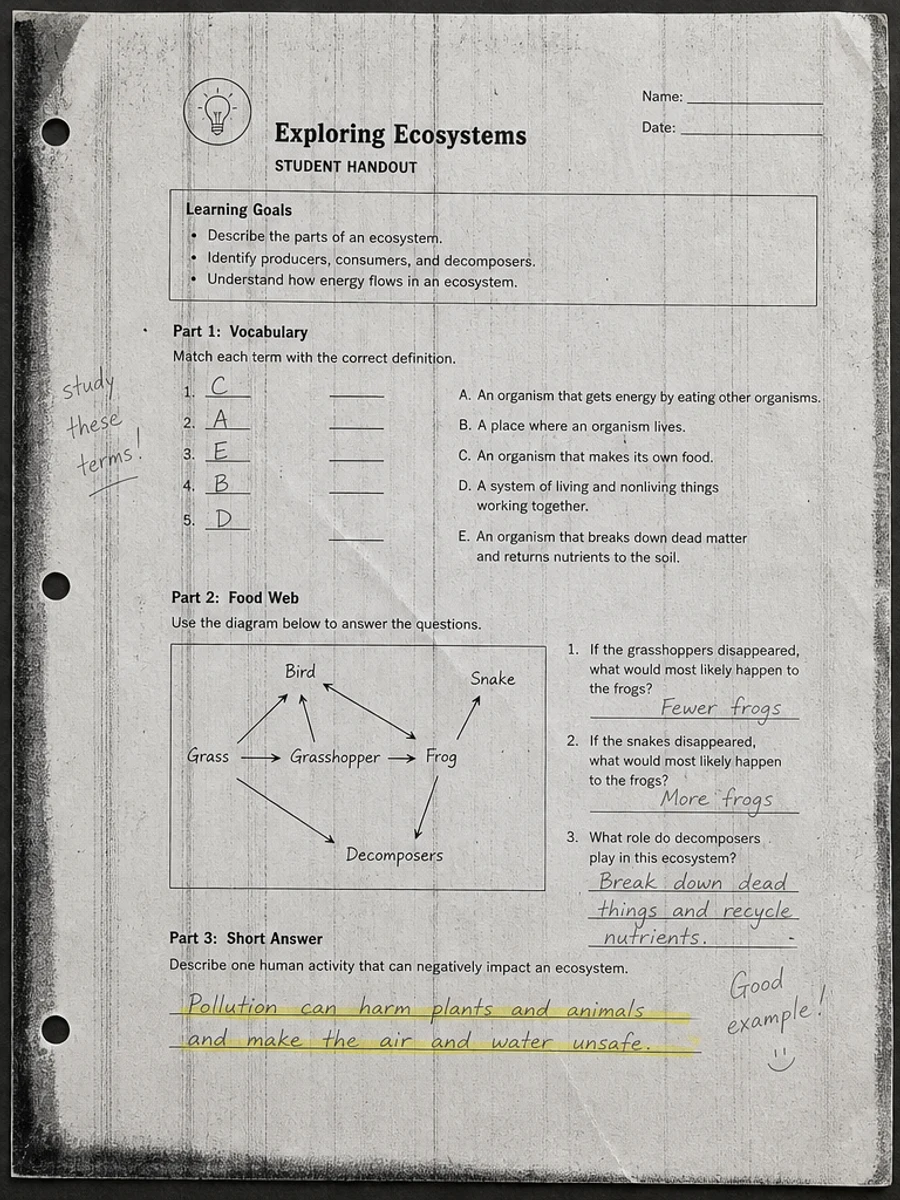
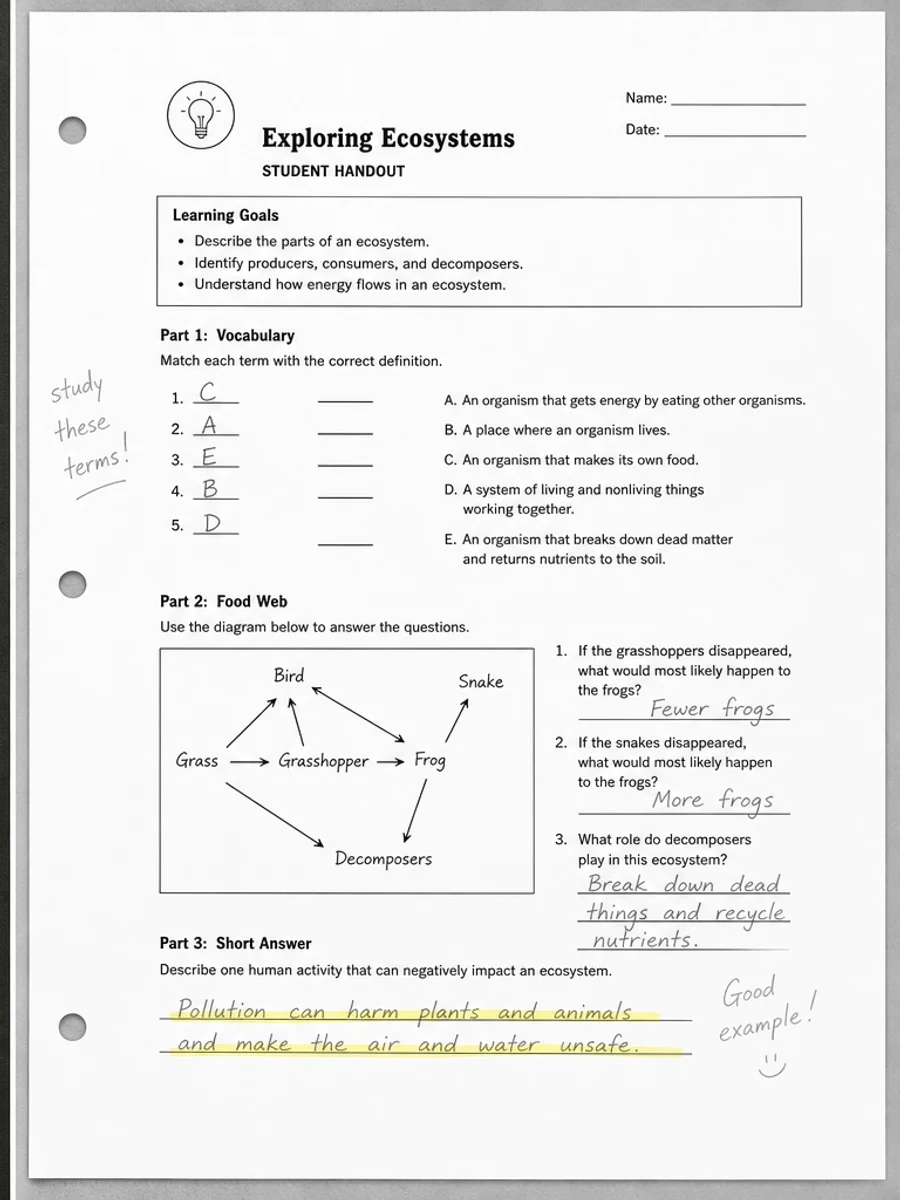
Inline before and after example: コピーされたワークシートのスキャンをきれいにする
Step-by-step tutorial
- スキャンPDFを開きます。
- まず「古いコピー文書の補正」が最も目立つページを選びます。
- 控えめな読みやすさ改善プロンプトを使います。
- 処理前後を比較します。
- 重要な文字、数字、日付、表を確認します。
- 結果に問題がなければ書き出します。
Prompts you can paste
01このスキャンPDFページを補正し、古いコピー文書の補正を改善してください。灰色背景、影、汚れ、ノイズを減らし、元のレイアウトを維持してください。
02読みやすさを少しだけ改善し、薄い文字を濃くし、背景を整え、手書き、印章、表、マークを残してください。
03控えめに処理し、OCR文字レイヤーは作らず、ページ構造を変えず、書き出し前に確認しやすくしてください。
When RedesignPDF is a good fit
- 文字が見えているスキャンPDFページ
- フラット化された画像ベース文書
- 視覚的な読みやすさを改善したいファイル
When it is not the right tool
- PDFの文字レイヤーを正確に編集する作業
- 公的・法的な認証レベルの復元
- 確認なしの自動データ抽出
よくある失敗
- 白くしすぎて細い線や薄い印が消える。
- 視覚補正をOCRや文字変換と混同する。
- 数字、日付、表、手書きを確認せずに書き出す。
Related reading
FAQ
RedesignPDFで古いコピー文書の補正を改善できますか?
スキャンページの見た目を改善できます。書き出す前に重要な文字、日付、金額、表を確認してください。
書き出したPDFの文字は選択できますか?
書き出しは画像ベースになる場合があります。検索可能または選択可能な文字が必要なら、別途OCRを使ってください。
公的な文書に使えますか?
注意が必要です。RedesignPDFは読みやすさの補正用で、認証済みの文書復元ではありません。
Conclusion
If your goal is a clearer scanned PDF while keeping the original layout, start with a conservative prompt, process one page, and review text, tables, numbers, handwriting, and stamps before exporting. If you need editable text, PDF-to-Word conversion, form filling, or precise text-layer editing, use OCR, a PDF editor, or a better rescan instead.
Upload scanned PDF