What readers usually run into
- 흐린 텍스트
- 회색 배경
- 휴대폰 그림자
- 낮은 대비
Start by diagnosing the scan, not the tool
A scanned PDF can be hard to read for different reasons, and each reason needs a different fix. If the letters are visible but pale, contrast cleanup can help. If the page has a gray scanner background, copier haze, or phone shadows, background cleanup may help. If the photo is out of focus, cropped, or too compressed, no cleanup tool can reliably recover missing detail. Spend one minute zooming into the worst page before doing anything else. Ask: are the characters actually present, or am I hoping software will guess them?
When a rescan is the better answer
The best SEO article answer is not always 'use our tool.' Rescan when the photo is blurred, a corner is cut off, the page is curved near the spine, or important numbers are already unreadable. Use flat lighting, keep the camera parallel to the page, and scan before compressing the file. A better source scan usually beats an aggressive cleanup pass.
When visual cleanup makes sense
Visual cleanup is useful when the scan contains the needed information but is unpleasant to read: faded text, gray paper tone, dirty photocopy marks, mild shadows, speckles, or low contrast. In that case, the goal is not to make a new document. The goal is to make the same page easier for a human to read. RedesignPDF is designed for this image-based cleanup workflow: darken visible text, reduce distracting background artifacts, preserve layout, and export a cleaner image-based PDF.
Do not confuse cleanup with OCR
OCR and visual cleanup solve different problems. OCR tries to recognize text and create a searchable or selectable text layer. Visual cleanup improves the page image itself. If OCR is failing because the scan is dirty or low contrast, clean the scan first, then run OCR in a separate tool. But do not treat a cleaner-looking PDF as proof that OCR will be perfect. Dates, amounts, names, tables, and handwritten notes still need review.
Use one representative page first
Do not batch-process a whole document on the first try. Pick the grayest page, the page with the weakest text, or the page with the worst shadow. Work on that page, compare the result, and only then decide whether the prompt is suitable for the rest of the file.
Write the prompt like a repair note
A useful prompt names both the defect and the boundary. Instead of 'make this PDF better,' write what you see: 'darken faded text,' 'reduce the gray scanner background,' 'clean the side shadow,' or 'reduce speckles.' Then add what must not change: layout, table lines, handwriting, stamps, checkboxes, and spacing.
Review the result like a reader would
After cleanup, read the document at normal zoom. If you have to zoom in to understand every paragraph, readability has not improved enough. Then inspect fragile parts: small numbers, dates, footnotes, totals, table values, signed marks, handwritten entries, and stamps. Good cleanup reduces distraction while keeping small details stable.
If the result looks too artificial
Over-cleaned scans are easy to spot: paper becomes unnaturally white, faint annotations vanish, table rules break, or stains turn into hard dots. If that happens, regenerate with a more conservative instruction such as 'light cleanup,' 'preserve fine lines,' and 'do not over-whiten the page.'
A practical workflow
First, inspect the source and decide whether a rescan is needed. Second, choose one representative page. Third, apply a conservative cleanup prompt. Fourth, compare before and after at normal and close zoom. Fifth, adjust the prompt if lines, notes, or values are weakened.
What a good final result looks like
A good cleaned scan should feel boring in the best way: same page, same structure, easier reading. Text has stronger contrast, background noise distracts less, shadows are reduced, and important marks remain. It should not look rewritten, redesigned, or converted into an editable document.
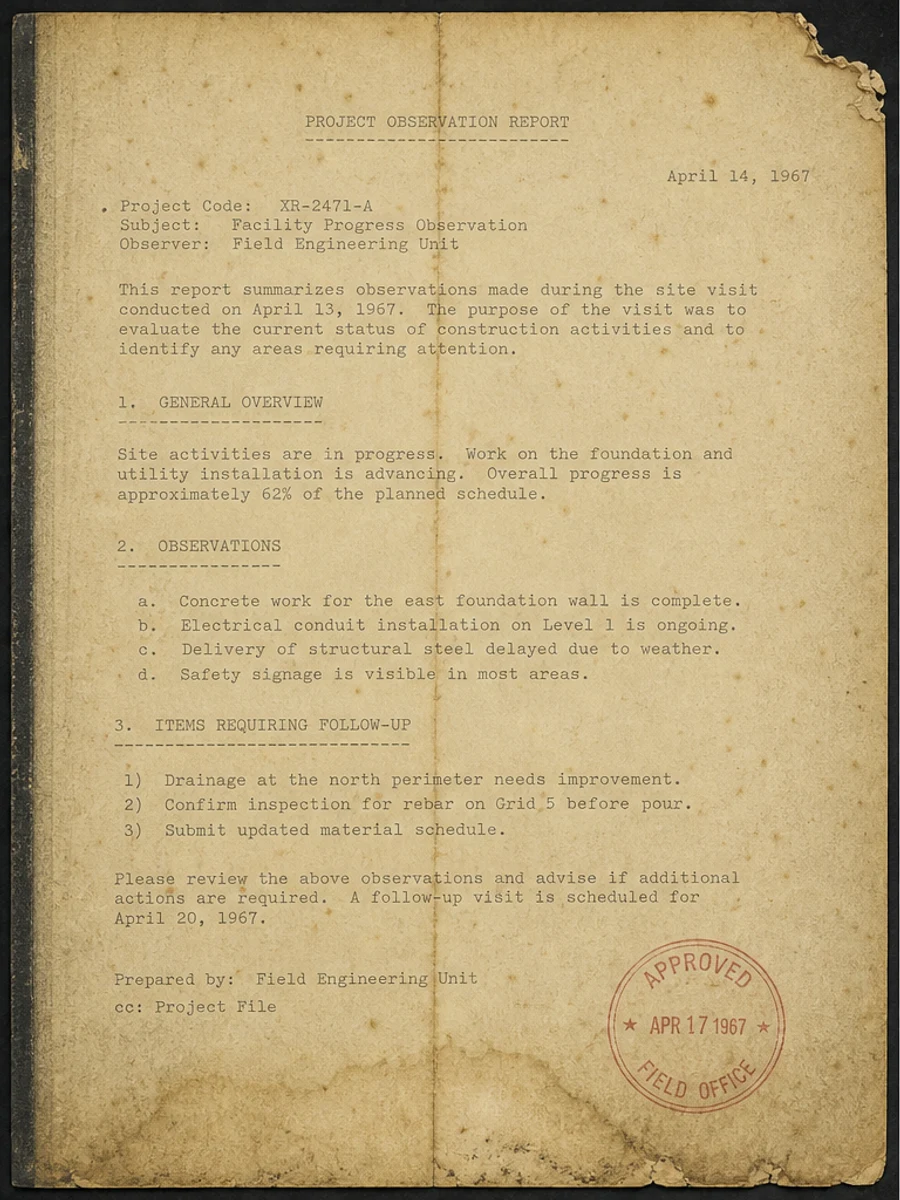
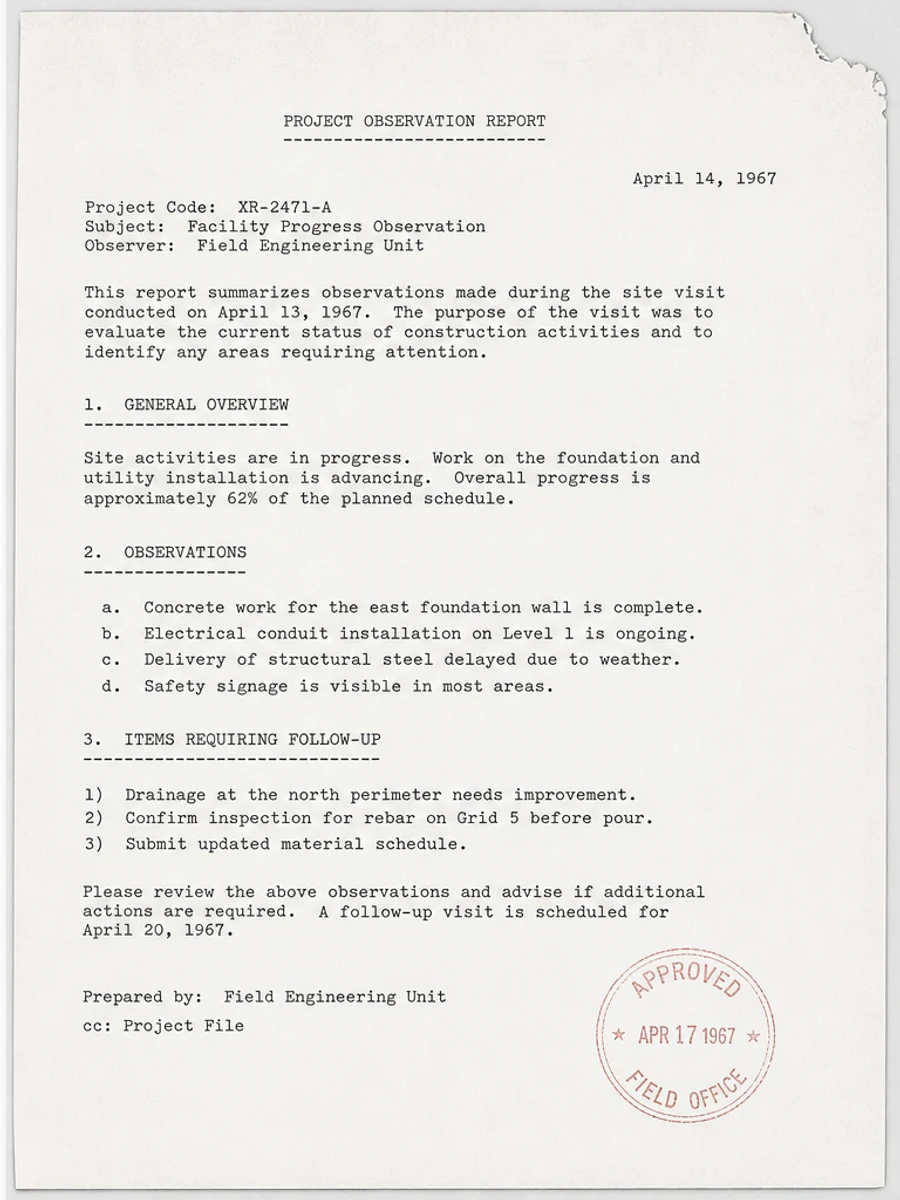
Inline before and after example: 흐린 스캔 PDF 페이지 개선
Step-by-step tutorial
- 스캔 PDF를 엽니다.
- 먼저 “읽기 어려운 스캔 PDF” 문제가 가장 잘 보이는 페이지를 선택합니다.
- 보수적인 가독성 개선 프롬프트를 사용합니다.
- 전후 결과를 비교합니다.
- 중요한 텍스트, 숫자, 날짜, 표를 확인합니다.
- 결과가 적절할 때 내보냅니다.
Prompts you can paste
01이 스캔 PDF 페이지를 정리하고 읽기 어려운 스캔 PDF 문제를 개선하세요. 회색 배경, 그림자, 얼룩, 노이즈를 줄이고 원래 레이아웃을 유지하세요.
02가독성을 부드럽게 개선하세요. 흐린 텍스트를 진하게 하고 배경을 정리하며 필기, 도장, 표, 표시를 보존하세요.
03보수적으로 처리하고 OCR 텍스트 레이어를 만들지 않으며 페이지 구조를 바꾸지 마세요.
When RedesignPDF is a good fit
- 텍스트가 보이는 스캔 PDF 페이지
- 평면화되었거나 이미지 기반인 문서
- 시각적 가독성 향상이 목표인 파일
When it is not the right tool
- PDF 텍스트 레이어의 정밀 편집
- 인증된 법적 복원
- 검토 없는 자동 데이터 추출
흔한 실수
- 페이지를 지나치게 하얗게 만들어 얇은 선을 잃는 것.
- 시각 정리를 OCR이나 텍스트 변환으로 오해하는 것.
- 숫자, 날짜, 표, 필기를 확인하지 않고 내보내는 것.
Related reading
FAQ
RedesignPDF로 읽기 어려운 스캔 PDF 문제를 개선할 수 있나요?
스캔된 페이지 이미지의 시각적 품질을 개선할 수 있습니다. 내보내기 전에 중요한 텍스트, 날짜, 금액, 표를 확인하세요.
내보낸 PDF의 텍스트를 선택할 수 있나요?
내보내기는 이미지 기반일 수 있습니다. 검색 가능하거나 선택 가능한 텍스트가 필요하면 OCR을 별도로 사용하세요.
공식 문서에 적합한가요?
주의해서 사용해야 합니다. RedesignPDF는 가독성 개선용이며 인증된 문서 복원 도구가 아닙니다.
Conclusion
If your goal is a clearer scanned PDF while keeping the original layout, start with a conservative prompt, process one page, and review text, tables, numbers, handwriting, and stamps before exporting. If you need editable text, PDF-to-Word conversion, form filling, or precise text-layer editing, use OCR, a PDF editor, or a better rescan instead.
Upload scanned PDF