What readers usually run into
- 휴대폰 그림자
- 낮은 해상도
- 말린 페이지
- 과도한 압축
Start with capture quality
Cleanup cannot fully compensate for cropped edges, severe blur, or missing text. Place the document flat, avoid strong side light, and keep the camera or scanner parallel to the page. For phone captures, use even lighting and check focus before saving.
Avoid preventable artifacts
Many cleanup problems come from shadows, curled paper, glossy reflections, low scan resolution, or heavy compression. Fixing those before upload is faster than trying to repair every page later.
Scan one test page
Before scanning a large packet, test one page and inspect small text, margins, signatures, and tables. If the test page looks gray or blurry, adjust lighting, resolution, or page position before continuing.
Use RedesignPDF where it helps most
After you have the best available scan, use RedesignPDF for pages that still have gray background, faded text, stains, or shadows. Do not use cleanup as a substitute for OCR, form filling, compression, or merging.
Phone scanning setup
If you use a phone, place the document on a flat surface with light coming from both sides or from a broad source above the page. Keep your hand and phone shadow away from the text. Hold the phone parallel to the page, tap to focus, and check the corners before saving. A few seconds spent on capture can remove several minutes of cleanup later.
Flatbed or office scanner setup
For a scanner, clean the glass, align the page, and avoid settings that create tiny compressed files at the cost of legibility. If the document has faint pencil or light type, preview one page and make sure those marks remain visible. If the scanner creates a gray background, you can still clean it later, but the best source file should retain as much real detail as possible.
After scanning, choose the right tool
Use RedesignPDF when the page image needs visual cleanup. Use OCR when you need searchable text. Use merge, split, or compression tools when the file structure or size is the problem. Separating those jobs prevents unrealistic prompts and gives better results. A clean scan is the starting point; the next tool depends on whether you need reading, search, editing, or file management.
A final pre-cleanup checklist
Before uploading, ask four questions: is the whole page visible, is the smallest text in focus, is the lighting even, and is the file not overly compressed? If the answer is no, fix the scan if possible. If the answer is yes but the page still has gray background, shadows, stains, or faded text, then visual cleanup is a sensible next step. This keeps RedesignPDF focused on the problems it is actually designed to solve.
Example prompt after a good scan
Once the capture is good, the prompt can stay simple: "Clean remaining scan artifacts, reduce gray background and shadows, improve text contrast, and preserve handwriting, stamps, tables, margins, and document structure." This prompt assumes the scan already contains the needed detail. It asks RedesignPDF to improve readability without turning cleanup into OCR, form filling, compression, or a general PDF utility workflow.
Related example to compare
Before scanning a large batch, compare your test page with a phone-scan or photocopy cleanup example. If your source has fewer shadows and sharper text than the example, cleanup should be straightforward. If it looks worse, improve the capture first instead of expecting post-processing to solve everything.
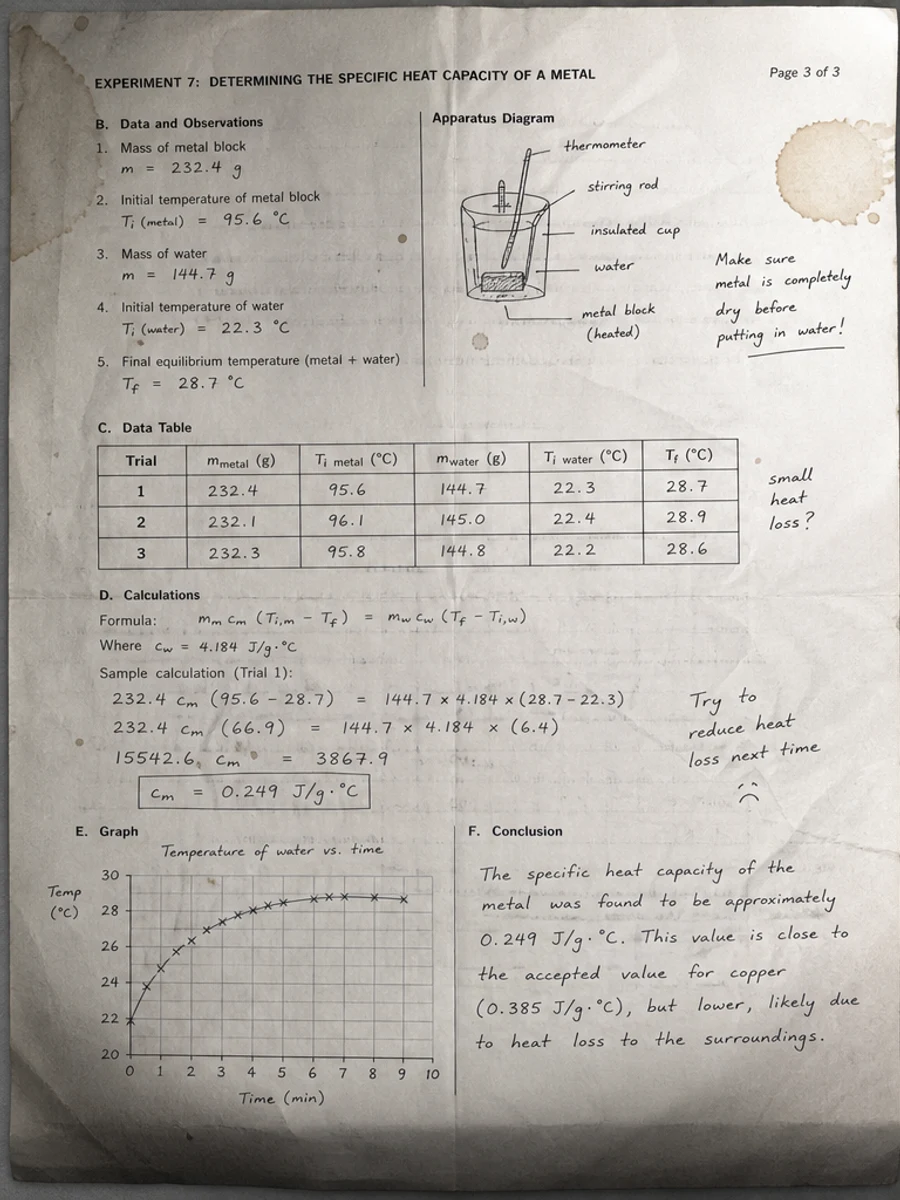
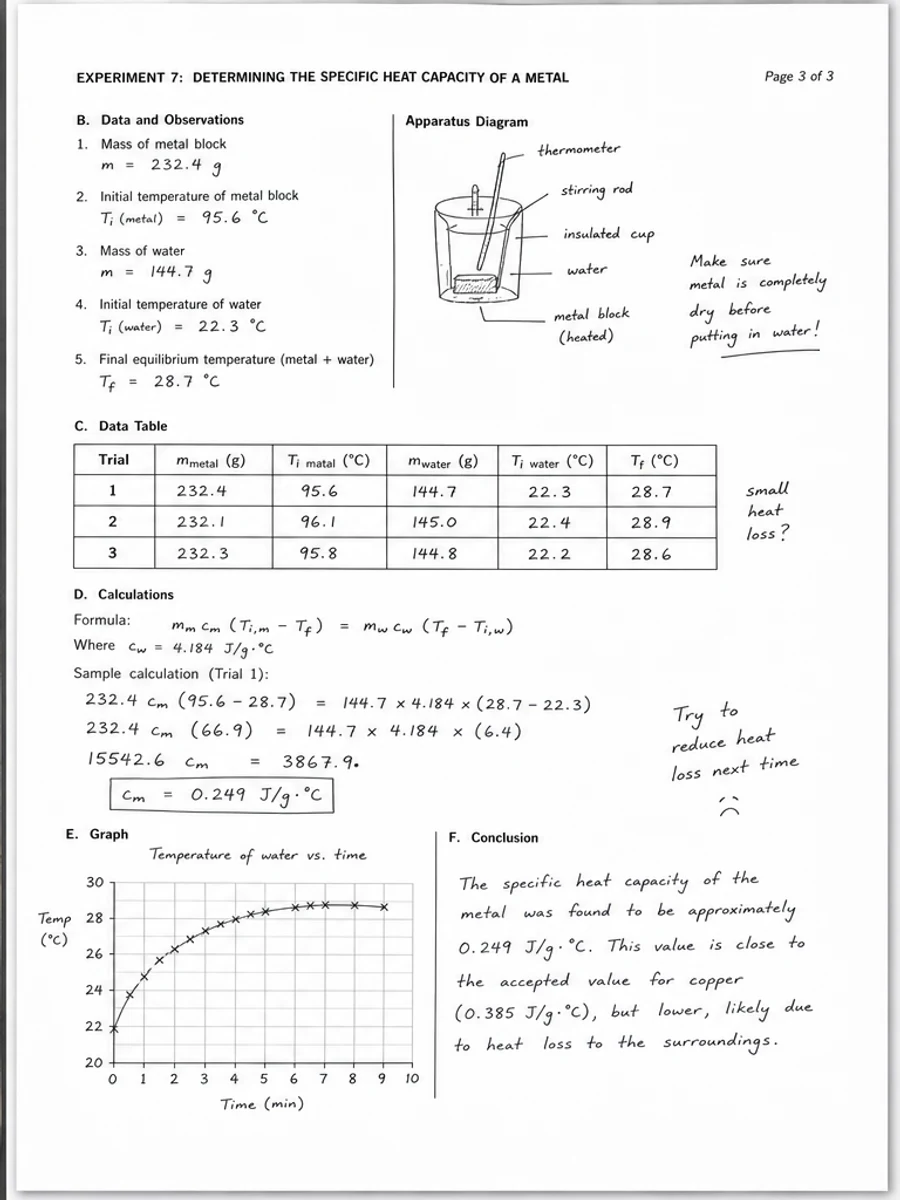
Inline before and after example: 휴대폰으로 스캔한 PDF 페이지 정리
Step-by-step tutorial
- 스캔 PDF를 엽니다.
- 먼저 “정리 전 문서 스캔” 문제가 가장 잘 보이는 페이지를 선택합니다.
- 보수적인 가독성 개선 프롬프트를 사용합니다.
- 전후 결과를 비교합니다.
- 중요한 텍스트, 숫자, 날짜, 표를 확인합니다.
- 결과가 적절할 때 내보냅니다.
Prompts you can paste
01이 스캔 PDF 페이지를 정리하고 정리 전 문서 스캔 문제를 개선하세요. 회색 배경, 그림자, 얼룩, 노이즈를 줄이고 원래 레이아웃을 유지하세요.
02가독성을 부드럽게 개선하세요. 흐린 텍스트를 진하게 하고 배경을 정리하며 필기, 도장, 표, 표시를 보존하세요.
03보수적으로 처리하고 OCR 텍스트 레이어를 만들지 않으며 페이지 구조를 바꾸지 마세요.
When RedesignPDF is a good fit
- 텍스트가 보이는 스캔 PDF 페이지
- 평면화되었거나 이미지 기반인 문서
- 시각적 가독성 향상이 목표인 파일
When it is not the right tool
- PDF 텍스트 레이어의 정밀 편집
- 인증된 법적 복원
- 검토 없는 자동 데이터 추출
흔한 실수
- 페이지를 지나치게 하얗게 만들어 얇은 선을 잃는 것.
- 시각 정리를 OCR이나 텍스트 변환으로 오해하는 것.
- 숫자, 날짜, 표, 필기를 확인하지 않고 내보내는 것.
Related reading
FAQ
RedesignPDF로 정리 전 문서 스캔 문제를 개선할 수 있나요?
스캔된 페이지 이미지의 시각적 품질을 개선할 수 있습니다. 내보내기 전에 중요한 텍스트, 날짜, 금액, 표를 확인하세요.
내보낸 PDF의 텍스트를 선택할 수 있나요?
내보내기는 이미지 기반일 수 있습니다. 검색 가능하거나 선택 가능한 텍스트가 필요하면 OCR을 별도로 사용하세요.
공식 문서에 적합한가요?
주의해서 사용해야 합니다. RedesignPDF는 가독성 개선용이며 인증된 문서 복원 도구가 아닙니다.
Conclusion
If your goal is a clearer scanned PDF while keeping the original layout, start with a conservative prompt, process one page, and review text, tables, numbers, handwriting, and stamps before exporting. If you need editable text, PDF-to-Word conversion, form filling, or precise text-layer editing, use OCR, a PDF editor, or a better rescan instead.
Upload scanned PDF