What readers usually run into
- Névoa de cópia
- Papel amarelado
- Desperdício de tinta
- OCR fraco
Why the background turns gray
Gray background usually comes from copier haze, old paper color, scanner exposure, shadows near the spine, or a PDF made from multiple photocopy generations. The page may look wasteful when printed and OCR may perform poorly because the software sees background texture as noise.
Clean background separately from text
The safest prompt asks for reduced gray background and darker text at the same time. If you only ask to whiten the page, thin table rules, pencil marks, formulas, and light stamps can disappear. A good cleanup preserves meaningful marks while lowering the visual weight of the paper tone.
Best documents for this cleanup
This works well for office scans, academic handouts, photocopied worksheets, contracts copied in grayscale, and old documents where text is present but buried in haze. It is not a replacement for OCR correction, PDF compression, merging, or form filling.
How to review the result
Inspect small characters, tables, borders, and low-contrast annotations. If the page looks artificially white or details vanish, regenerate with a prompt that says to preserve fine lines and use light background cleanup.
Before and after signs to look for
A good after image should have calmer paper tone and stronger text without looking like a new document. The best signs are simple: paragraphs become readable at normal zoom, background haze no longer competes with letters, table rules are still present, and diagrams or formulas keep their shape. A bad result often looks bright at first but removes pale information. That is why the review step should include details, not just the overall page color.
Why aggressive whitening can backfire
Many gray-background scans contain real content that is also light gray: pencil notes, signatures, stamps, pale grid lines, scanned illustrations, and old paper texture. If the prompt says only "remove gray background," the output may treat those details as noise. Add instructions such as "preserve thin marks" and "do not erase annotations" when the document includes anything beyond plain dark text on white paper.
When OCR is part of the plan
If the next step is OCR, clean for legibility rather than perfection. OCR generally benefits from higher contrast and less background noise, but it can still misread numbers, punctuation, and table structure. Export the visually cleaned PDF, run OCR in a separate tool, and compare the recognized text with the original scan. RedesignPDF should be the image cleanup step, not the text verification step.
Printing and sharing considerations
Gray backgrounds often become more annoying when the document is printed or shared in a small preview. A cleaner background can reduce ink use and make the page feel less muddy, but the exported PDF should still be checked on the medium you care about. If you plan to print, inspect margins and pale lines. If you plan to email the file, open the exported PDF and confirm that the page remains readable at common preview sizes.
Recommended conservative prompt
A good prompt for this topic is explicit but restrained: "Reduce the gray scanner background and copier haze, darken faded text slightly, preserve thin lines, diagrams, handwritten notes, stamps, and the original layout." This tells the model what to improve and what not to touch. If the result still looks too gray, increase cleanup gradually rather than jumping to an extreme whitening instruction that may damage real content.
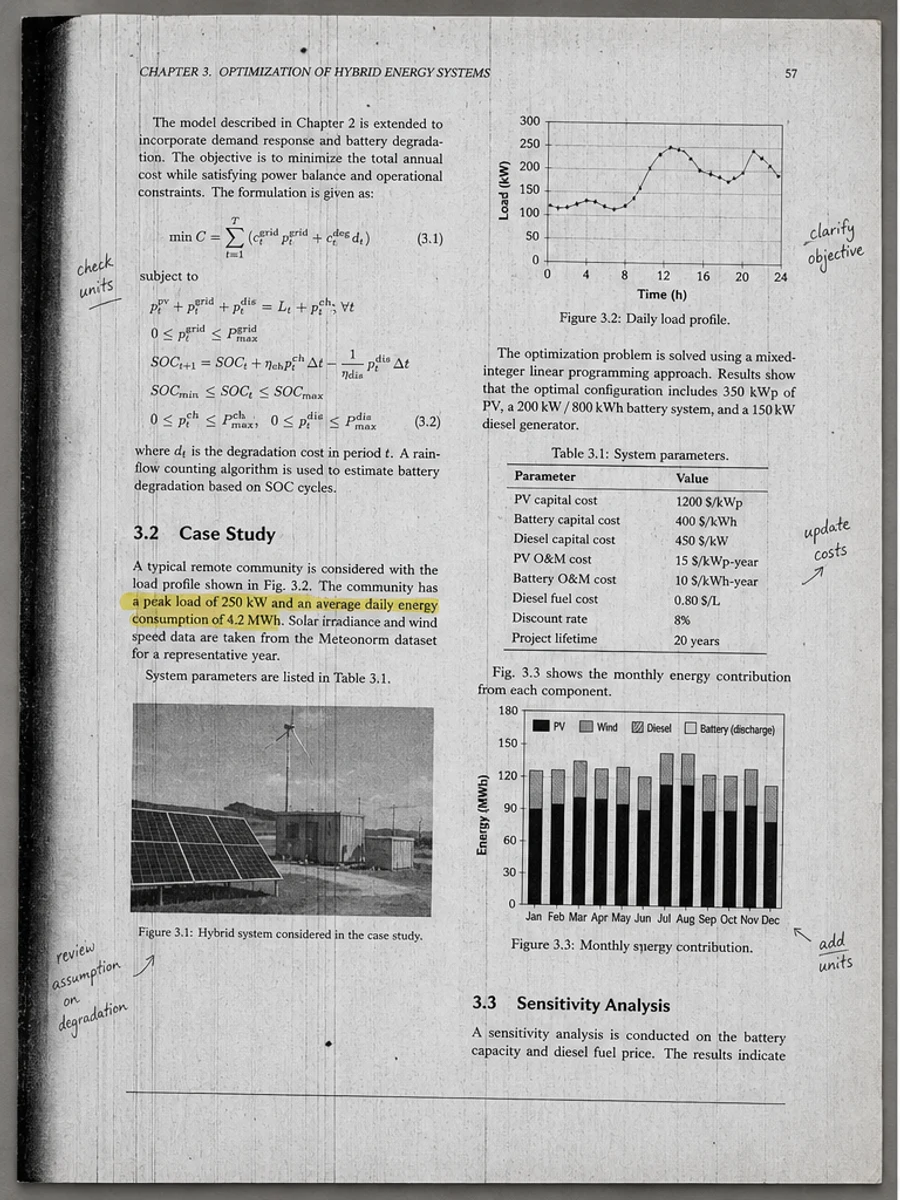
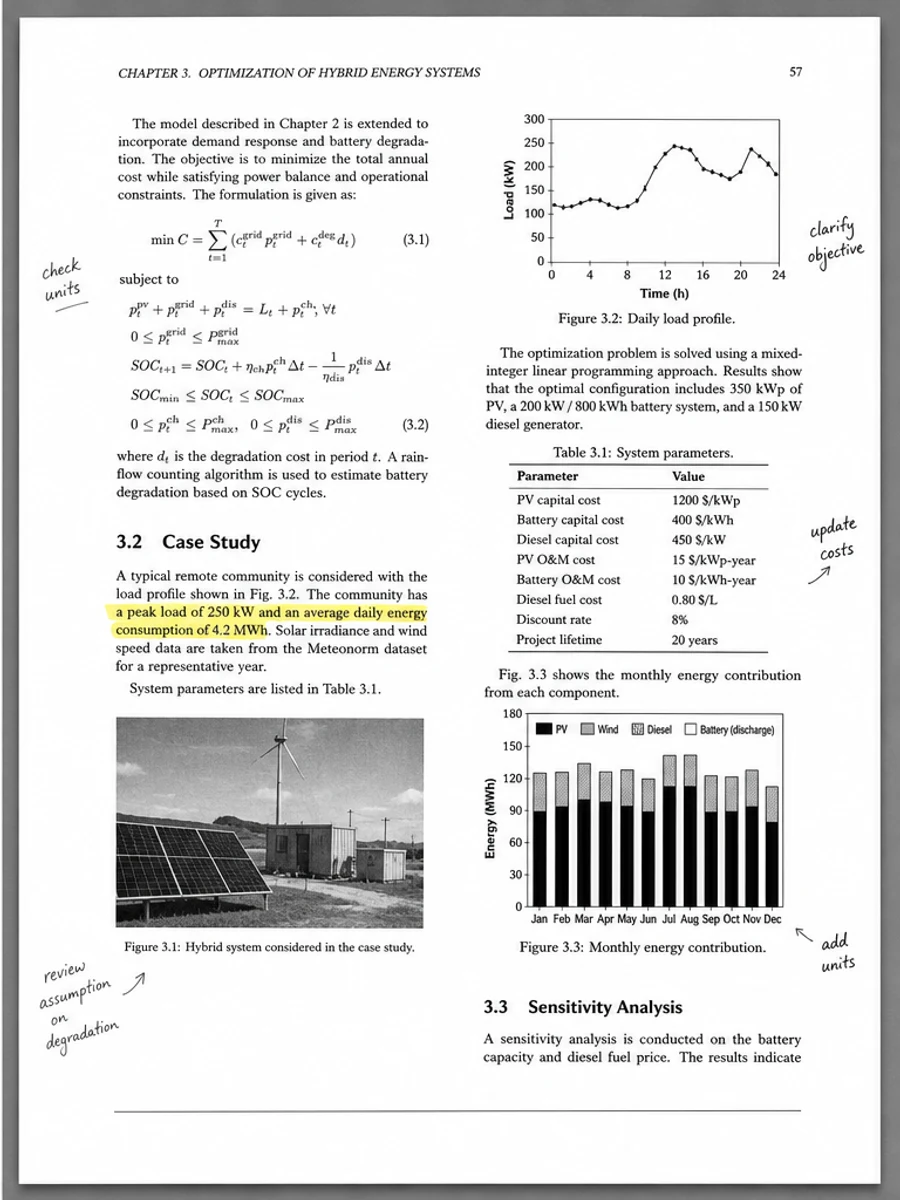
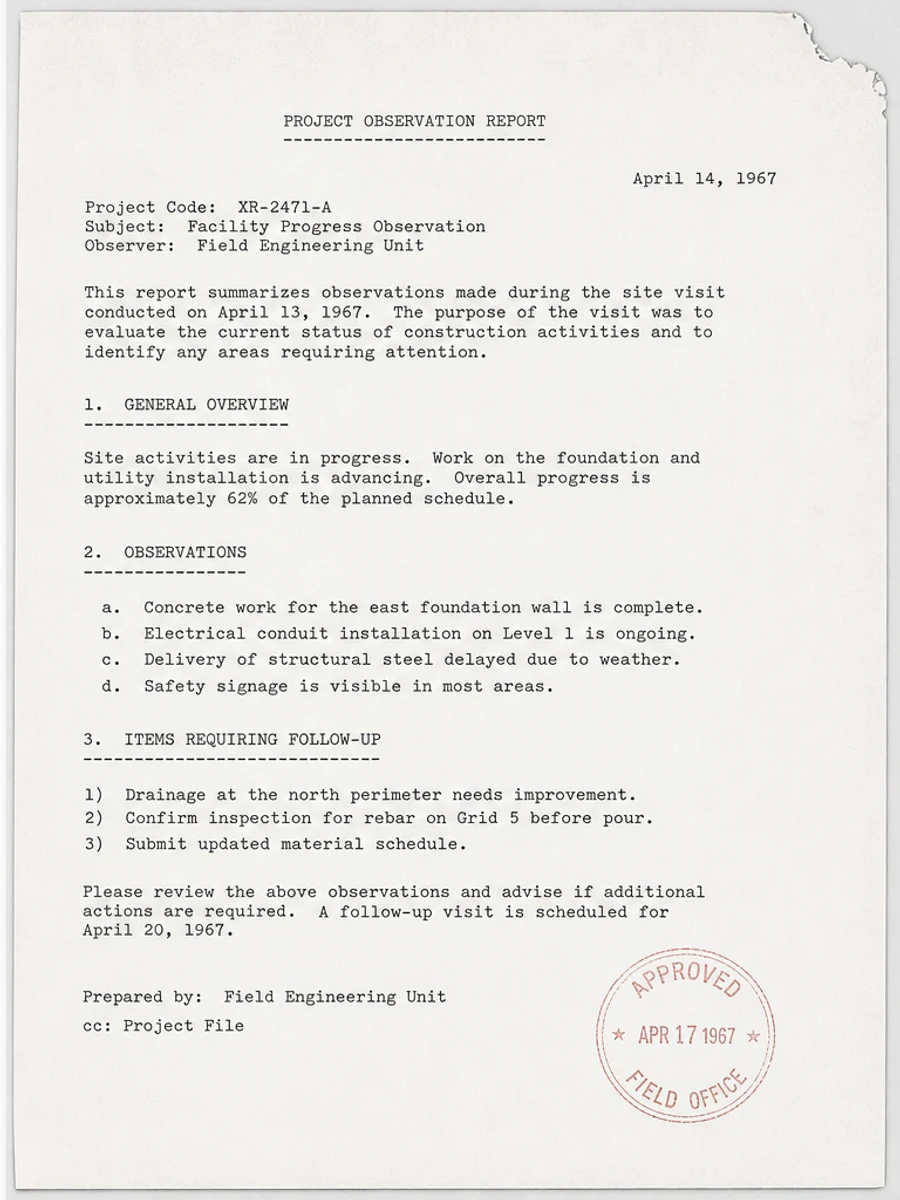
Inline before and after example: Remover o fundo cinza de um PDF digitalizado
Step-by-step tutorial
- Abra o PDF digitalizado.
- Escolha primeiro uma página em que “fundo cinza em PDF digitalizado” apareça claramente.
- Use um prompt conservador de legibilidade.
- Compare antes e depois.
- Revise textos, números, datas e tabelas importantes.
- Exporte quando o resultado for aceitável.
Prompts you can paste
01Limpe esta página de PDF digitalizado e corrija fundo cinza em PDF digitalizado; reduza fundo cinza, sombras, manchas e ruído mantendo o layout original.
02Melhore levemente a legibilidade: escureça texto apagado, limpe o fundo e preserve escrita manual, carimbos, tabelas e marcas.
03Use tratamento conservador, sem criar camada OCR e sem alterar a estrutura da página.
When RedesignPDF is a good fit
- Páginas PDF digitalizadas com texto visível
- Documentos achatados ou baseados em imagem
- Arquivos cujo objetivo é legibilidade visual
When it is not the right tool
- Edição precisa da camada de texto do PDF
- Restauração legal certificada
- Extração automática de dados sem revisão
Erros comuns
- Clarear demais a página até perder linhas finas.
- Confundir limpeza visual com OCR ou conversão de texto.
- Exportar sem revisar números, datas, tabelas e escrita manual.
Related reading
FAQ
O RedesignPDF pode corrigir fundo cinza em PDF digitalizado?
Pode melhorar a imagem visível da página digitalizada. Revise texto, datas, valores e tabelas antes de exportar.
O PDF exportado terá texto selecionável?
A exportação pode ser baseada em imagem. Use OCR separadamente se precisar de texto pesquisável ou selecionável.
Serve para documentos oficiais?
Use com cautela. RedesignPDF melhora legibilidade, não é restauração certificada de documentos.
Conclusion
If your goal is a clearer scanned PDF while keeping the original layout, start with a conservative prompt, process one page, and review text, tables, numbers, handwriting, and stamps before exporting. If you need editable text, PDF-to-Word conversion, form filling, or precise text-layer editing, use OCR, a PDF editor, or a better rescan instead.
Upload scanned PDF