What readers usually run into
- Recibos térmicos apagados
- Formulários manuscritos
- Sombras do celular
- Manchas
Why receipts and forms are fragile
Thermal receipt text fades, forms pick up wrinkles and shadows, and handwritten fields may be light or inconsistent. A cleanup that is too strong can make totals, dates, checkboxes, or handwritten entries less trustworthy even if the page looks cleaner.
Preserve values first
The prompt should mention totals, dates, line items, field labels, and handwriting. Ask for readability improvement without changing content or moving fields. After generation, review the cleaned page against the original before using it for reimbursement or records.
Good examples
This works for expense receipts, intake forms, signup sheets, maintenance forms, and phone-captured paperwork. It is not meant for filling form fields, editing official values, or replacing accounting review.
Avoid over-cleaning
If a receipt has faint thermal text, over-sharpening can create false-looking characters. If a form has boxes or lines, over-whitening can make boundaries disappear. Use a conservative prompt and check all important fields.
What to inspect after generation
Receipts and forms contain high-risk details: totals, tax, dates, vendor names, checkboxes, account numbers, and handwritten entries. After cleanup, compare those details against the original scan. If a digit becomes ambiguous or a checkbox border fades, regenerate with a lighter prompt. A visually cleaner receipt is not useful if the values become less reliable.
Prompting for forms
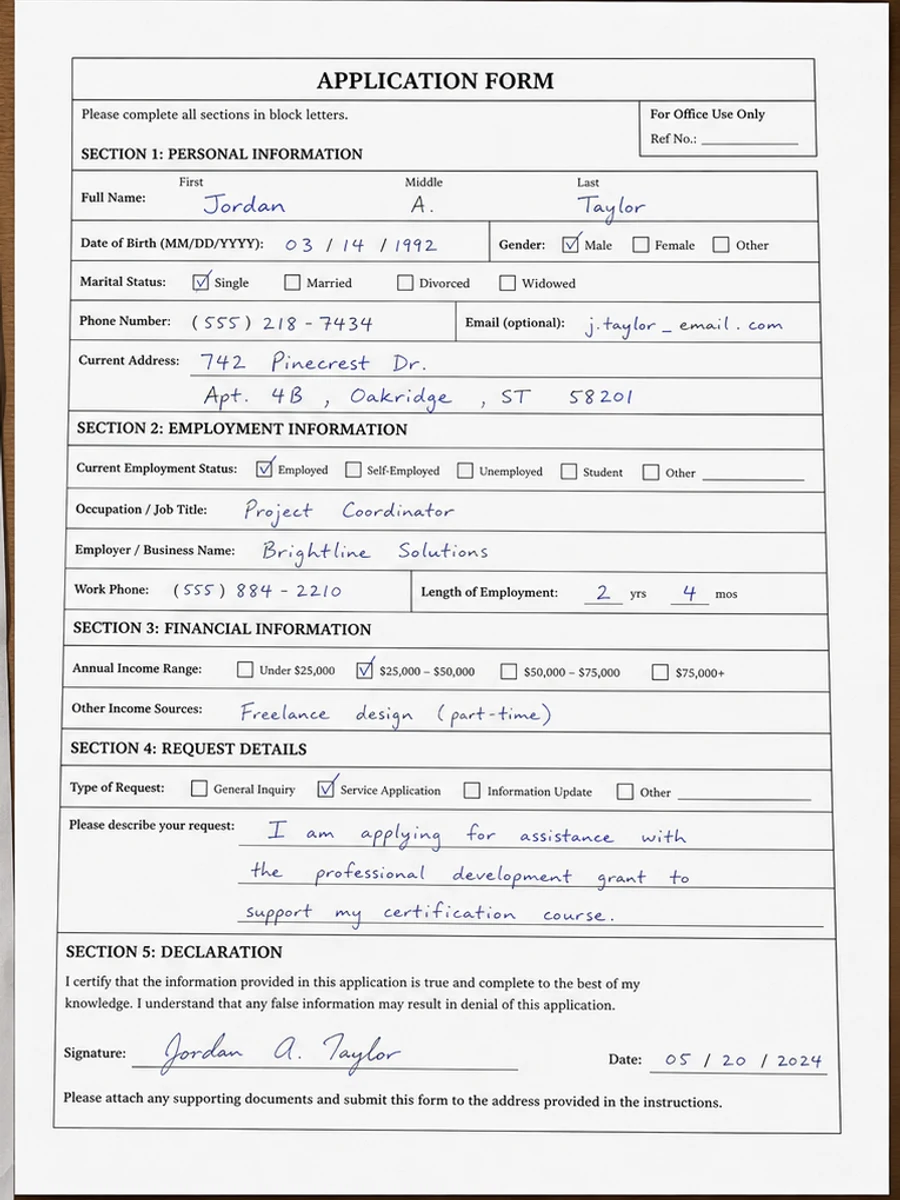
For forms, tell the prompt to preserve field boundaries, labels, handwriting, checkmarks, and alignment. If the form was captured by phone, add shadow and perspective cleanup, but avoid asking for a redesigned or flattened layout. The goal is a cleaner scan of the same form, not a new version of the form.
Prompting for receipts
For receipts, emphasize faded thermal text, wrinkles, shadows, and smudges. Ask the tool to darken line items and totals without inventing missing numbers. Barcodes, logos, and store names may also need preservation. If the receipt is too faded to verify, cleanup can help readability but should not be treated as proof of the missing information.
When forms need extra caution
Forms often mix printed labels, handwriting, checkboxes, stamps, and signatures. A cleanup that improves one element can weaken another. Review every filled field, not just the overall page. If the form will support a reimbursement, application, or internal record, compare the cleaned copy against the original scan before sharing it. RedesignPDF can make review easier, but it should not become the authority for what a value says.
Example prompt for receipts and forms
For a receipt, use: "Darken faded thermal print, reduce wrinkles, smudges, and shadows, and preserve totals, dates, line items, barcodes, and layout." For a form, use: "Clean shadows and background noise, preserve field labels, boxes, handwriting, stamps, checkmarks, and alignment." These prompts keep the cleanup focused on readability and prevent the model from treating important filled-in information as removable noise.
Related example to compare
Before exporting, compare the result with a receipt or handwritten form example and then with your original page. The example shows what cleaner contrast can look like; the original tells you whether the values stayed faithful. If those two checks disagree, trust the original and regenerate with a lighter prompt. This is especially important for totals, dates, and checked boxes. Keep the source visible during review and document any uncertainty before sharing the cleaned file with another person, team, finance process, approval workflow, or system. Do not discard the source scan.
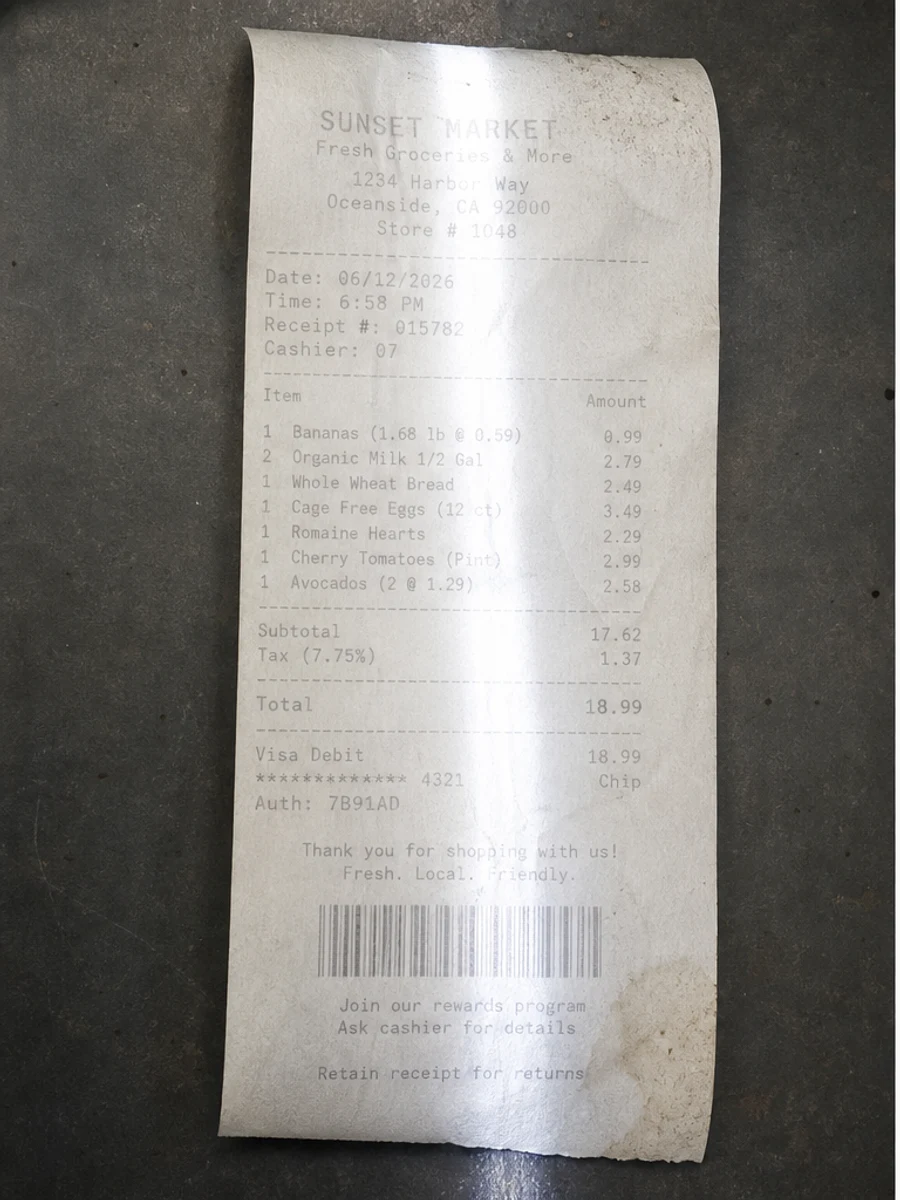
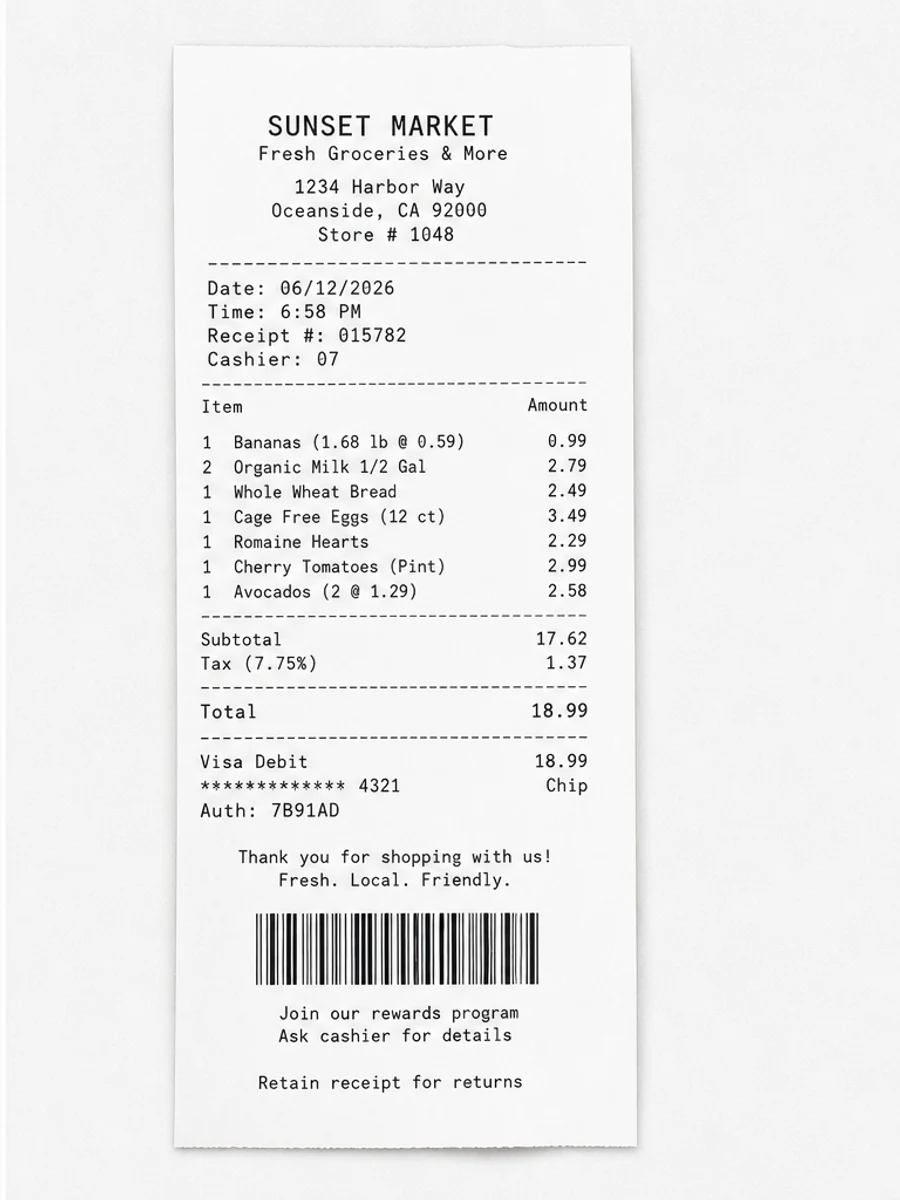
Inline before and after example: Limpar um recibo digitalizado
Step-by-step tutorial
- Abra o PDF digitalizado.
- Escolha primeiro uma página em que “melhorar recibos e formulários digitalizados” apareça claramente.
- Use um prompt conservador de legibilidade.
- Compare antes e depois.
- Revise textos, números, datas e tabelas importantes.
- Exporte quando o resultado for aceitável.
Prompts you can paste
01Limpe esta página de PDF digitalizado e corrija melhorar recibos e formulários digitalizados; reduza fundo cinza, sombras, manchas e ruído mantendo o layout original.
02Melhore levemente a legibilidade: escureça texto apagado, limpe o fundo e preserve escrita manual, carimbos, tabelas e marcas.
03Use tratamento conservador, sem criar camada OCR e sem alterar a estrutura da página.
When RedesignPDF is a good fit
- Páginas PDF digitalizadas com texto visível
- Documentos achatados ou baseados em imagem
- Arquivos cujo objetivo é legibilidade visual
When it is not the right tool
- Edição precisa da camada de texto do PDF
- Restauração legal certificada
- Extração automática de dados sem revisão
Erros comuns
- Clarear demais a página até perder linhas finas.
- Confundir limpeza visual com OCR ou conversão de texto.
- Exportar sem revisar números, datas, tabelas e escrita manual.
Related reading
FAQ
O RedesignPDF pode corrigir melhorar recibos e formulários digitalizados?
Pode melhorar a imagem visível da página digitalizada. Revise texto, datas, valores e tabelas antes de exportar.
O PDF exportado terá texto selecionável?
A exportação pode ser baseada em imagem. Use OCR separadamente se precisar de texto pesquisável ou selecionável.
Serve para documentos oficiais?
Use com cautela. RedesignPDF melhora legibilidade, não é restauração certificada de documentos.
Conclusion
If your goal is a clearer scanned PDF while keeping the original layout, start with a conservative prompt, process one page, and review text, tables, numbers, handwriting, and stamps before exporting. If you need editable text, PDF-to-Word conversion, form filling, or precise text-layer editing, use OCR, a PDF editor, or a better rescan instead.
Upload scanned PDF