What readers usually run into
- 흐린 감열 영수증
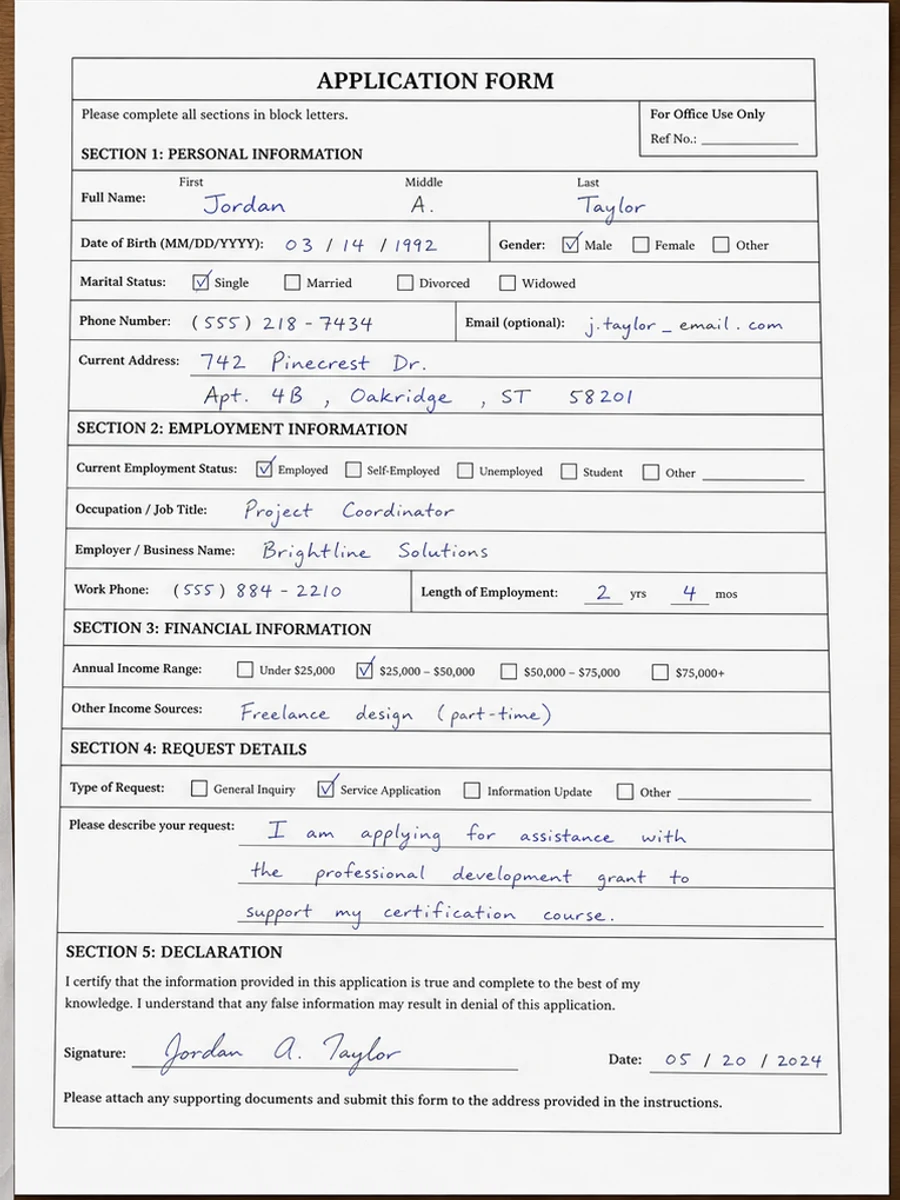
- 손글씨 양식
- 휴대폰 그림자
- 얼룩
Why receipts and forms are fragile
Thermal receipt text fades, forms pick up wrinkles and shadows, and handwritten fields may be light or inconsistent. A cleanup that is too strong can make totals, dates, checkboxes, or handwritten entries less trustworthy even if the page looks cleaner.
Preserve values first
The prompt should mention totals, dates, line items, field labels, and handwriting. Ask for readability improvement without changing content or moving fields. After generation, review the cleaned page against the original before using it for reimbursement or records.
Good examples
This works for expense receipts, intake forms, signup sheets, maintenance forms, and phone-captured paperwork. It is not meant for filling form fields, editing official values, or replacing accounting review.
Avoid over-cleaning
If a receipt has faint thermal text, over-sharpening can create false-looking characters. If a form has boxes or lines, over-whitening can make boundaries disappear. Use a conservative prompt and check all important fields.
What to inspect after generation
Receipts and forms contain high-risk details: totals, tax, dates, vendor names, checkboxes, account numbers, and handwritten entries. After cleanup, compare those details against the original scan. If a digit becomes ambiguous or a checkbox border fades, regenerate with a lighter prompt. A visually cleaner receipt is not useful if the values become less reliable.
Prompting for forms
For forms, tell the prompt to preserve field boundaries, labels, handwriting, checkmarks, and alignment. If the form was captured by phone, add shadow and perspective cleanup, but avoid asking for a redesigned or flattened layout. The goal is a cleaner scan of the same form, not a new version of the form.
Prompting for receipts
For receipts, emphasize faded thermal text, wrinkles, shadows, and smudges. Ask the tool to darken line items and totals without inventing missing numbers. Barcodes, logos, and store names may also need preservation. If the receipt is too faded to verify, cleanup can help readability but should not be treated as proof of the missing information.
When forms need extra caution
Forms often mix printed labels, handwriting, checkboxes, stamps, and signatures. A cleanup that improves one element can weaken another. Review every filled field, not just the overall page. If the form will support a reimbursement, application, or internal record, compare the cleaned copy against the original scan before sharing it. RedesignPDF can make review easier, but it should not become the authority for what a value says.
Example prompt for receipts and forms
For a receipt, use: "Darken faded thermal print, reduce wrinkles, smudges, and shadows, and preserve totals, dates, line items, barcodes, and layout." For a form, use: "Clean shadows and background noise, preserve field labels, boxes, handwriting, stamps, checkmarks, and alignment." These prompts keep the cleanup focused on readability and prevent the model from treating important filled-in information as removable noise.
Related example to compare
Before exporting, compare the result with a receipt or handwritten form example and then with your original page. The example shows what cleaner contrast can look like; the original tells you whether the values stayed faithful. If those two checks disagree, trust the original and regenerate with a lighter prompt. This is especially important for totals, dates, and checked boxes. Keep the source visible during review and document any uncertainty before sharing the cleaned file with another person, team, finance process, approval workflow, or system. Do not discard the source scan.
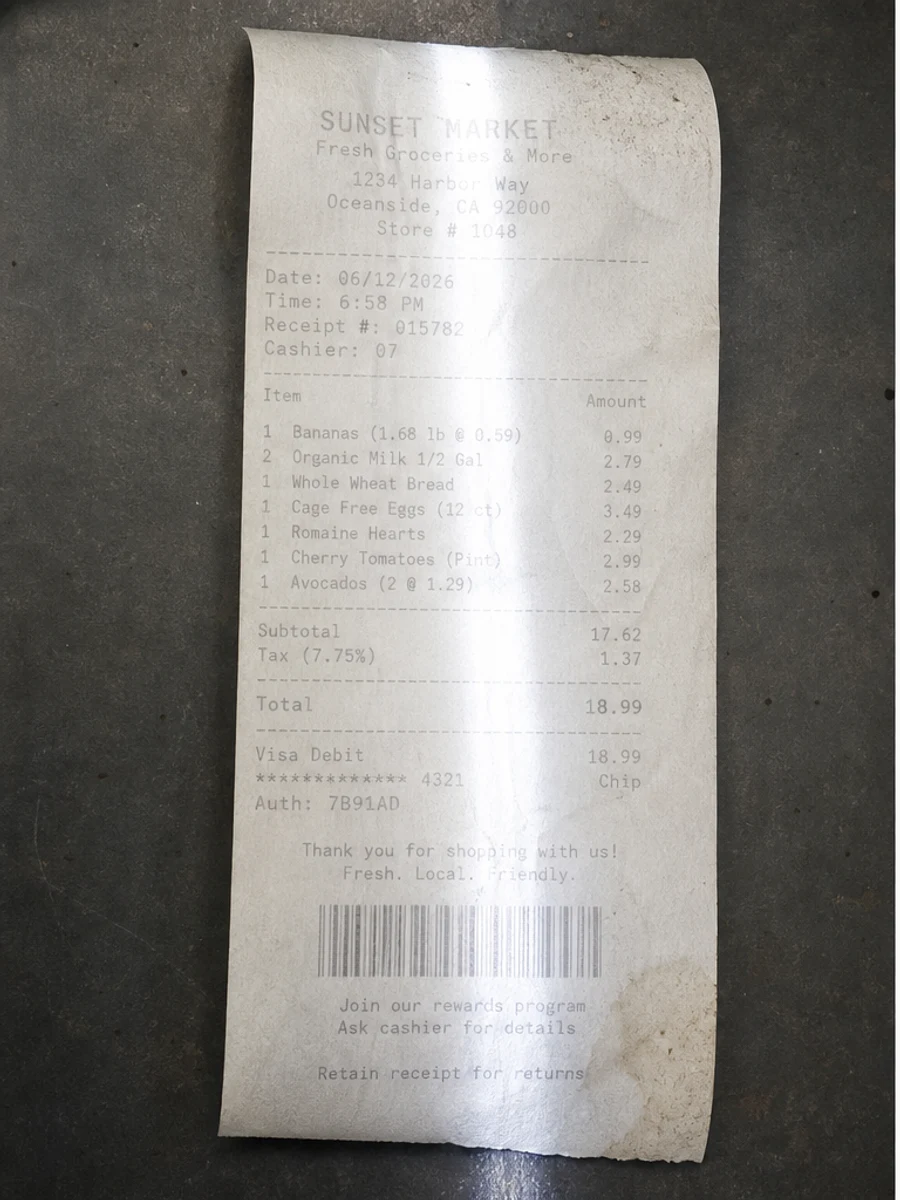
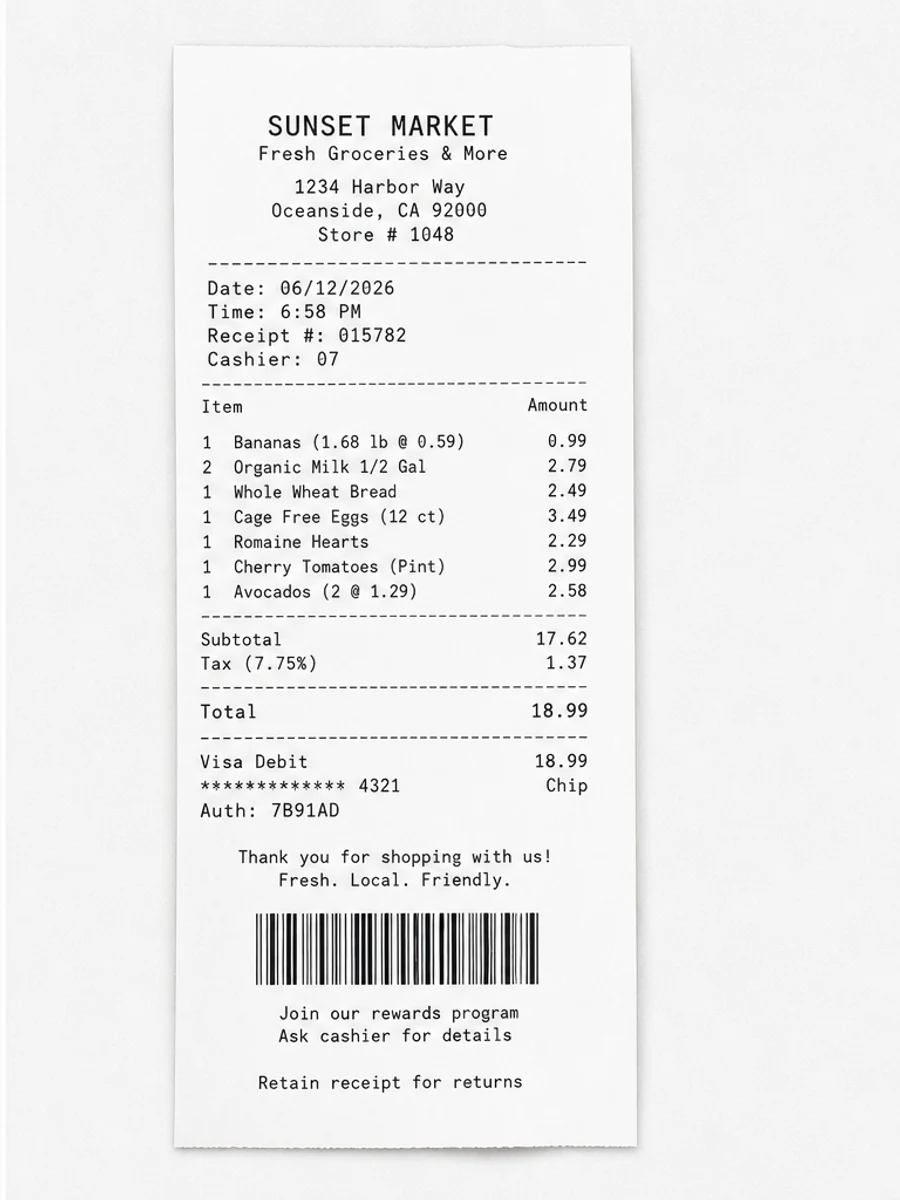
Inline before and after example: 스캔 영수증 정리
Step-by-step tutorial
- 스캔 PDF를 엽니다.
- 먼저 “스캔 영수증과 양식 개선” 문제가 가장 잘 보이는 페이지를 선택합니다.
- 보수적인 가독성 개선 프롬프트를 사용합니다.
- 전후 결과를 비교합니다.
- 중요한 텍스트, 숫자, 날짜, 표를 확인합니다.
- 결과가 적절할 때 내보냅니다.
Prompts you can paste
01이 스캔 PDF 페이지를 정리하고 스캔 영수증과 양식 개선 문제를 개선하세요. 회색 배경, 그림자, 얼룩, 노이즈를 줄이고 원래 레이아웃을 유지하세요.
02가독성을 부드럽게 개선하세요. 흐린 텍스트를 진하게 하고 배경을 정리하며 필기, 도장, 표, 표시를 보존하세요.
03보수적으로 처리하고 OCR 텍스트 레이어를 만들지 않으며 페이지 구조를 바꾸지 마세요.
When RedesignPDF is a good fit
- 텍스트가 보이는 스캔 PDF 페이지
- 평면화되었거나 이미지 기반인 문서
- 시각적 가독성 향상이 목표인 파일
When it is not the right tool
- PDF 텍스트 레이어의 정밀 편집
- 인증된 법적 복원
- 검토 없는 자동 데이터 추출
흔한 실수
- 페이지를 지나치게 하얗게 만들어 얇은 선을 잃는 것.
- 시각 정리를 OCR이나 텍스트 변환으로 오해하는 것.
- 숫자, 날짜, 표, 필기를 확인하지 않고 내보내는 것.
Related reading
FAQ
RedesignPDF로 스캔 영수증과 양식 개선 문제를 개선할 수 있나요?
스캔된 페이지 이미지의 시각적 품질을 개선할 수 있습니다. 내보내기 전에 중요한 텍스트, 날짜, 금액, 표를 확인하세요.
내보낸 PDF의 텍스트를 선택할 수 있나요?
내보내기는 이미지 기반일 수 있습니다. 검색 가능하거나 선택 가능한 텍스트가 필요하면 OCR을 별도로 사용하세요.
공식 문서에 적합한가요?
주의해서 사용해야 합니다. RedesignPDF는 가독성 개선용이며 인증된 문서 복원 도구가 아닙니다.
Conclusion
If your goal is a clearer scanned PDF while keeping the original layout, start with a conservative prompt, process one page, and review text, tables, numbers, handwriting, and stamps before exporting. If you need editable text, PDF-to-Word conversion, form filling, or precise text-layer editing, use OCR, a PDF editor, or a better rescan instead.
Upload scanned PDF