What readers usually run into
- スキャン後に灰色になる
- 文字が薄い
- 黄ばみ
- 照明ムラ
Common causes
A scanner may expose for the whole page instead of the text, making old paper or the scanner bed appear gray. Phone scans add uneven light and hand shadows. Photocopies lose contrast with each generation, so a scan of a copy often starts with weak text and heavy background.
Why OCR struggles
OCR software looks for character shapes. When background noise, paper texture, and text share similar contrast, OCR may split letters, miss punctuation, or read table borders as characters. Improving visual contrast first can help, but OCR still needs a separate tool and manual review.
How visual cleanup helps
A useful cleanup reduces background haze, darkens faded strokes, and keeps the layout stable. The goal is not to make the page look new; it is to make real content easier to read while leaving meaningful marks alone.
When not to over-correct
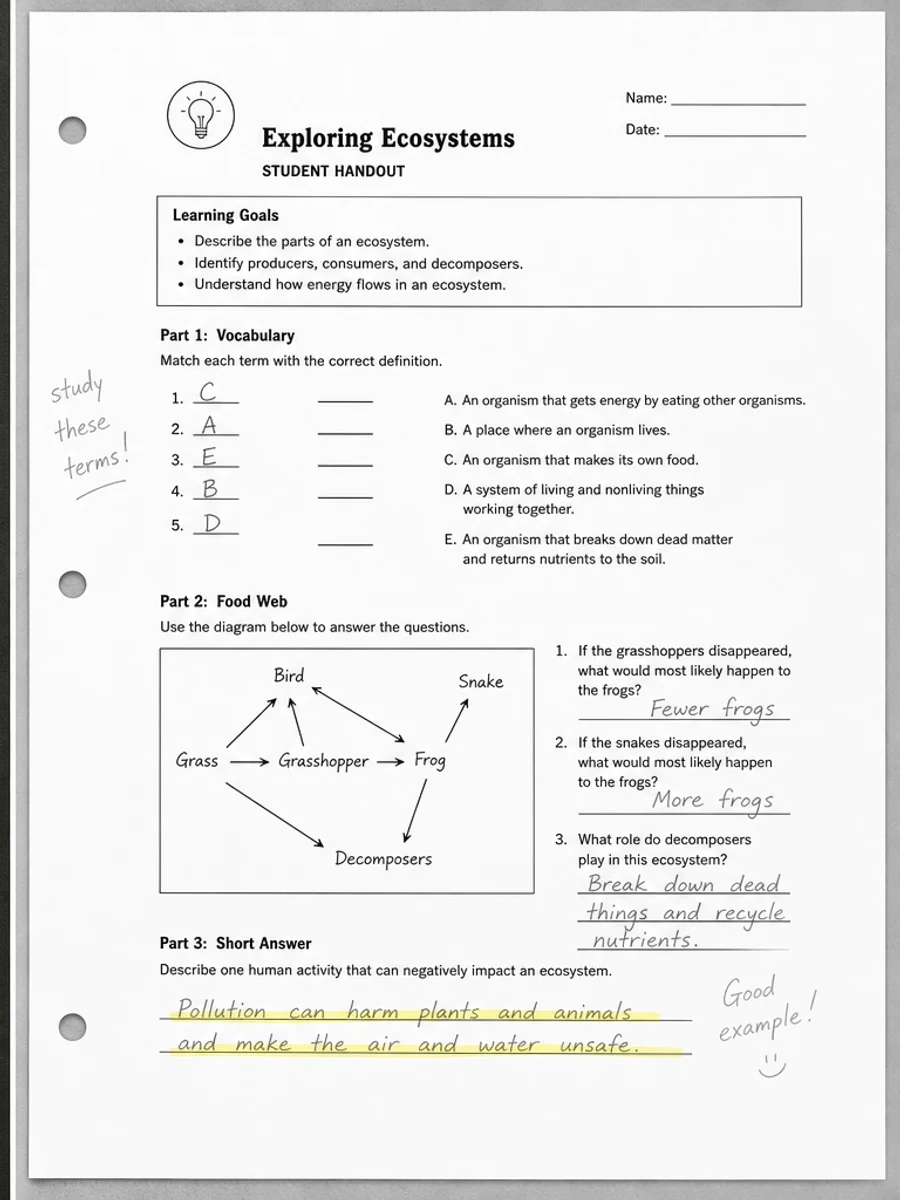
Old archive scans, signed forms, and marked-up documents may contain faint context that matters. If the scan includes annotations, stamps, or pale diagrams, avoid prompts that ask for a perfectly white page.
How to diagnose the visible problem
Look at where the gray or washed-out effect appears. If the whole page is gray, scanner exposure or paper tone is likely involved. If one edge is darker, the source may be a phone shadow or book spine shadow. If text looks thin everywhere, the original copy may already be weak. Naming the pattern helps the prompt target the right cleanup instead of applying a generic brightness change.
Why the same scan can fail in different ways
A page can look washed out to a human but still have enough contrast for OCR, or it can look acceptable on screen but print poorly because gray background wastes ink. The user problem matters. For reading, darker text and calmer background are usually enough. For OCR preparation, small characters and punctuation need special attention. For printing, large gray areas and dark borders may matter more.
How to avoid misleading cleanup
Do not ask the tool to make an old scan look perfect. A realistic cleanup keeps the document recognizable while reducing distractions. If stains, stamps, folds, or paper tone are part of the document context, preserve them or reduce them lightly. A visually cleaner PDF is useful only if it remains faithful enough for the reader to trust what they are seeing.
What users usually mean by washed out
When people describe a scan as washed out, they may mean several different things: the text is too pale, the paper is too gray, the page is too bright, or the contrast between letters and background is weak. Those are not identical problems. A good prompt explains the symptom in plain language and adds the desired outcome: easier reading, preserved layout, and no content rewriting.
Choosing a cleanup direction
If text is pale, ask for stronger text contrast. If the background is gray, ask to reduce paper haze. If lighting is uneven, ask to balance shadows while preserving marks. If the page is compressed, ask to reduce visible noise but keep small details. This diagnosis-first approach creates a better page than a generic "enhance scan" instruction, because each visual defect needs a slightly different balance.
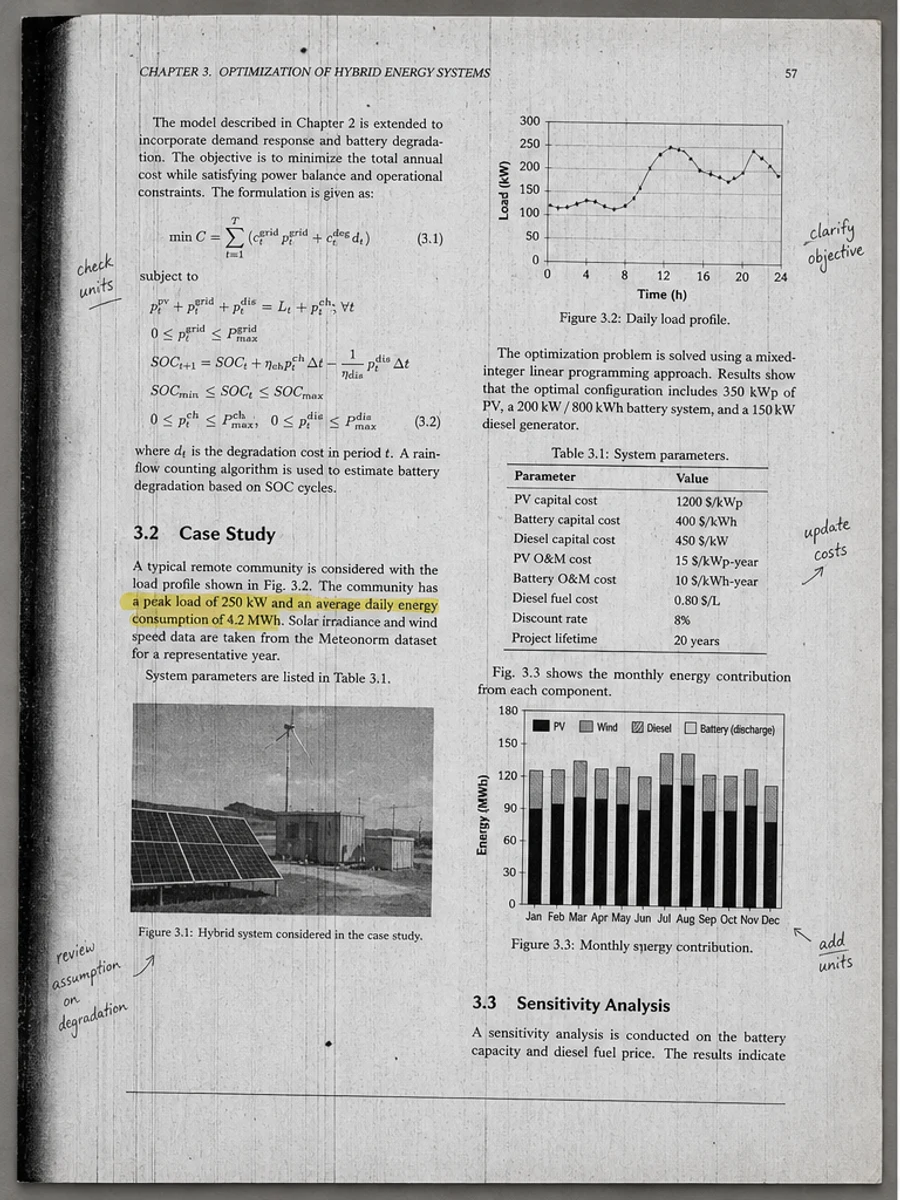
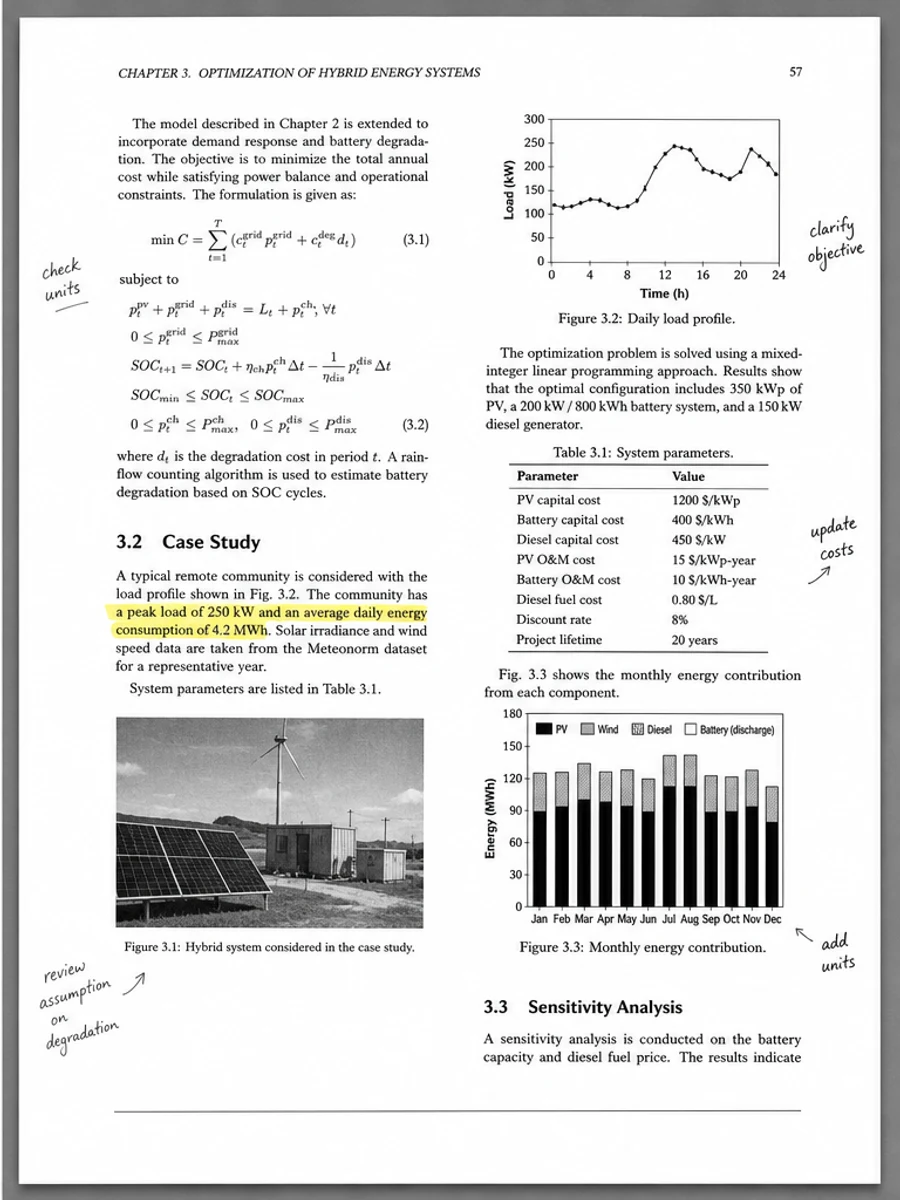
Inline before and after example: スキャンPDFの灰色背景を取り除く
Step-by-step tutorial
- スキャンPDFを開きます。
- まず「灰色または色あせたスキャンPDF」が最も目立つページを選びます。
- 控えめな読みやすさ改善プロンプトを使います。
- 処理前後を比較します。
- 重要な文字、数字、日付、表を確認します。
- 結果に問題がなければ書き出します。
Prompts you can paste
01このスキャンPDFページを補正し、灰色または色あせたスキャンPDFを改善してください。灰色背景、影、汚れ、ノイズを減らし、元のレイアウトを維持してください。
02読みやすさを少しだけ改善し、薄い文字を濃くし、背景を整え、手書き、印章、表、マークを残してください。
03控えめに処理し、OCR文字レイヤーは作らず、ページ構造を変えず、書き出し前に確認しやすくしてください。
When RedesignPDF is a good fit
- 文字が見えているスキャンPDFページ
- フラット化された画像ベース文書
- 視覚的な読みやすさを改善したいファイル
When it is not the right tool
- PDFの文字レイヤーを正確に編集する作業
- 公的・法的な認証レベルの復元
- 確認なしの自動データ抽出
よくある失敗
- 白くしすぎて細い線や薄い印が消える。
- 視覚補正をOCRや文字変換と混同する。
- 数字、日付、表、手書きを確認せずに書き出す。
Related reading
FAQ
RedesignPDFで灰色または色あせたスキャンPDFを改善できますか?
スキャンページの見た目を改善できます。書き出す前に重要な文字、日付、金額、表を確認してください。
書き出したPDFの文字は選択できますか?
書き出しは画像ベースになる場合があります。検索可能または選択可能な文字が必要なら、別途OCRを使ってください。
公的な文書に使えますか?
注意が必要です。RedesignPDFは読みやすさの補正用で、認証済みの文書復元ではありません。
Conclusion
If your goal is a clearer scanned PDF while keeping the original layout, start with a conservative prompt, process one page, and review text, tables, numbers, handwriting, and stamps before exporting. If you need editable text, PDF-to-Word conversion, form filling, or precise text-layer editing, use OCR, a PDF editor, or a better rescan instead.
Upload scanned PDF