What readers usually run into
- Gray pages after scanning
- Washed-out text
- Yellow casts
- Uneven lighting
Common causes
A scanner may expose for the whole page instead of the text, making old paper or the scanner bed appear gray. Phone scans add uneven light and hand shadows. Photocopies lose contrast with each generation, so a scan of a copy often starts with weak text and heavy background.
Why OCR struggles
OCR software looks for character shapes. When background noise, paper texture, and text share similar contrast, OCR may split letters, miss punctuation, or read table borders as characters. Improving visual contrast first can help, but OCR still needs a separate tool and manual review.
How visual cleanup helps
A useful cleanup reduces background haze, darkens faded strokes, and keeps the layout stable. The goal is not to make the page look new; it is to make real content easier to read while leaving meaningful marks alone.
When not to over-correct
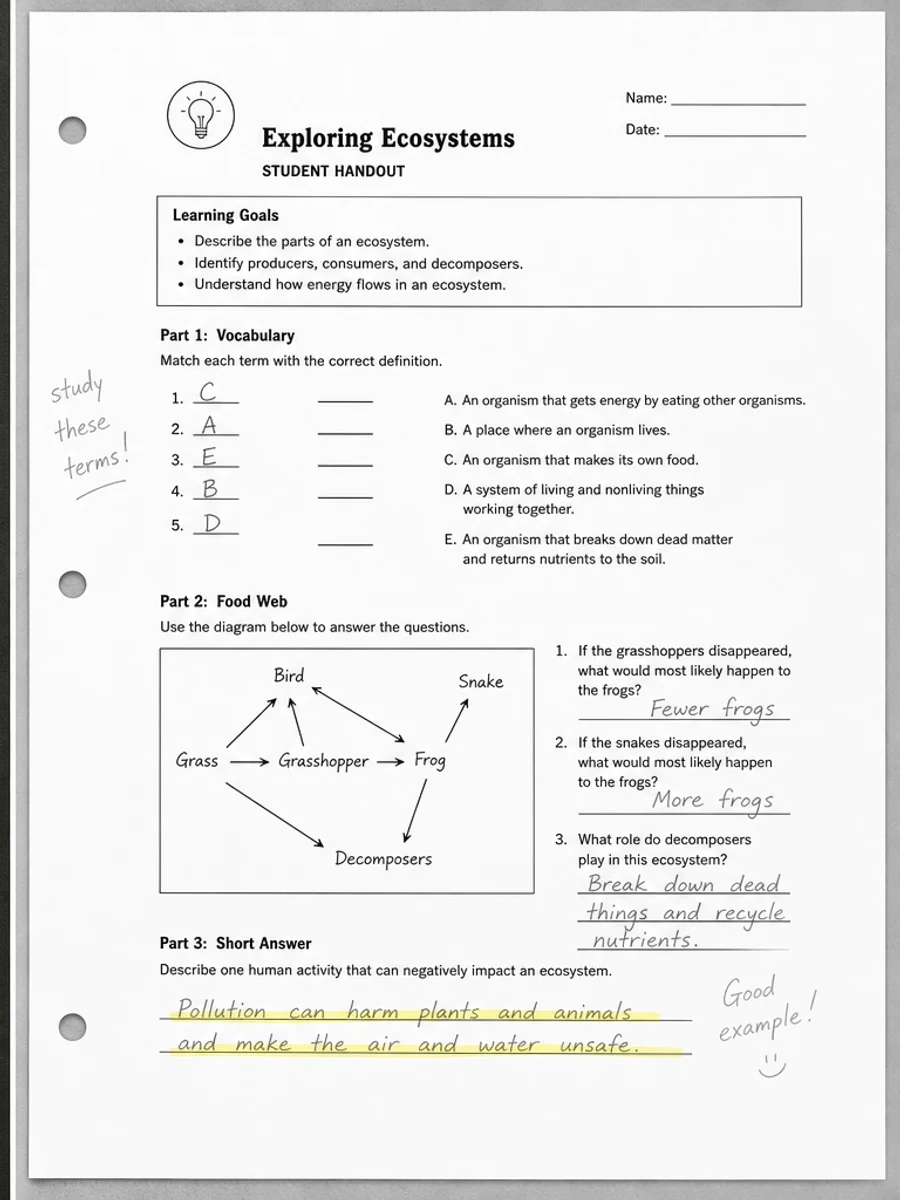
Old archive scans, signed forms, and marked-up documents may contain faint context that matters. If the scan includes annotations, stamps, or pale diagrams, avoid prompts that ask for a perfectly white page.
How to diagnose the visible problem
Look at where the gray or washed-out effect appears. If the whole page is gray, scanner exposure or paper tone is likely involved. If one edge is darker, the source may be a phone shadow or book spine shadow. If text looks thin everywhere, the original copy may already be weak. Naming the pattern helps the prompt target the right cleanup instead of applying a generic brightness change.
Why the same scan can fail in different ways
A page can look washed out to a human but still have enough contrast for OCR, or it can look acceptable on screen but print poorly because gray background wastes ink. The user problem matters. For reading, darker text and calmer background are usually enough. For OCR preparation, small characters and punctuation need special attention. For printing, large gray areas and dark borders may matter more.
How to avoid misleading cleanup
Do not ask the tool to make an old scan look perfect. A realistic cleanup keeps the document recognizable while reducing distractions. If stains, stamps, folds, or paper tone are part of the document context, preserve them or reduce them lightly. A visually cleaner PDF is useful only if it remains faithful enough for the reader to trust what they are seeing.
What users usually mean by washed out
When people describe a scan as washed out, they may mean several different things: the text is too pale, the paper is too gray, the page is too bright, or the contrast between letters and background is weak. Those are not identical problems. A good prompt explains the symptom in plain language and adds the desired outcome: easier reading, preserved layout, and no content rewriting.
Choosing a cleanup direction
If text is pale, ask for stronger text contrast. If the background is gray, ask to reduce paper haze. If lighting is uneven, ask to balance shadows while preserving marks. If the page is compressed, ask to reduce visible noise but keep small details. This diagnosis-first approach creates a better page than a generic "enhance scan" instruction, because each visual defect needs a slightly different balance.
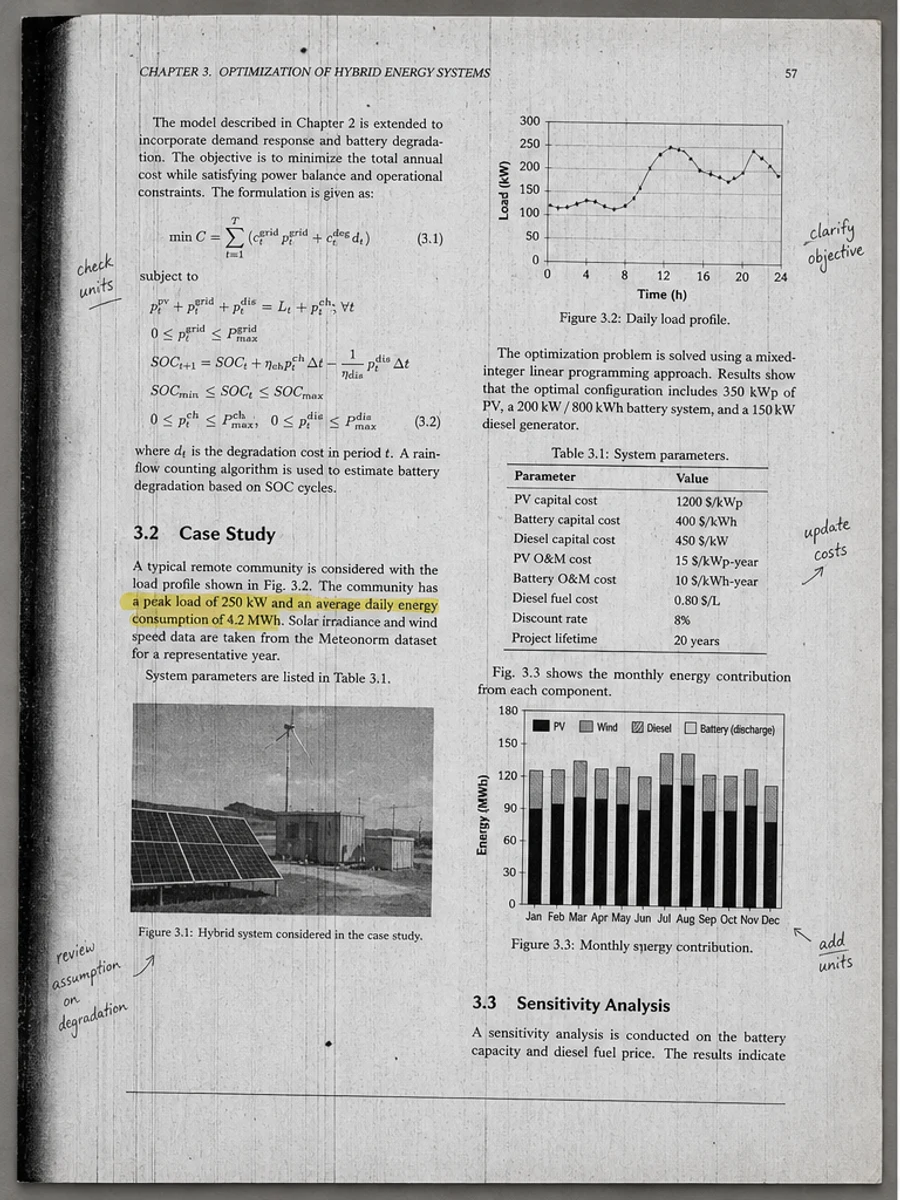
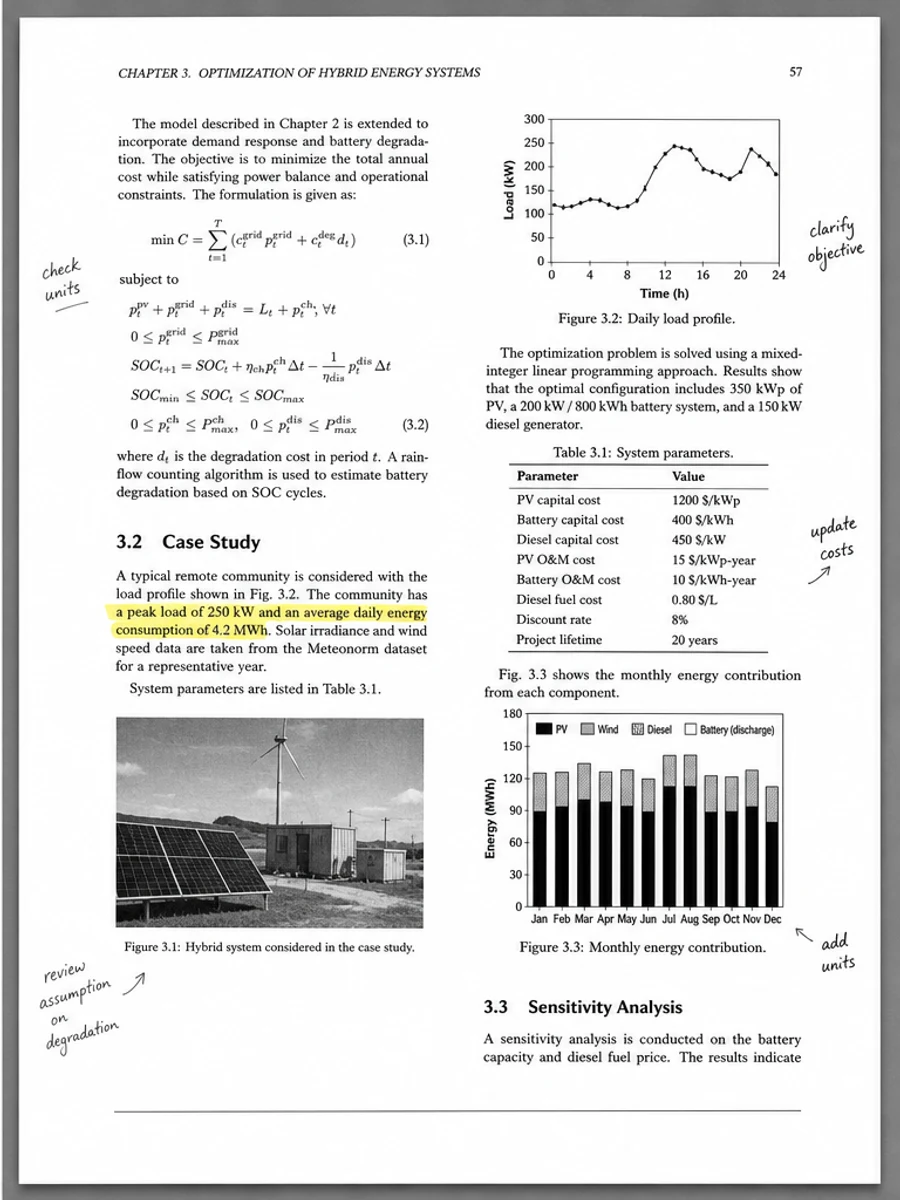
Inline before and after example: Remove gray background from a scanned PDF
Step-by-step tutorial
- Check the source paper.
- Look for scanner or phone lighting problems.
- Identify compression artifacts.
- Clean background separately from text.
- Review photos and diagrams.
- Save a cleaned copy.
Prompts you can paste
01Reduce gray scanner haze, improve faded text contrast, preserve diagrams and annotations, and keep the page layout unchanged.
02Clean uneven lighting and paper tone from this scanned PDF while keeping real marks, stamps, handwriting, and table lines visible.
03Apply light visual cleanup only. Do not make the page unnaturally white and do not change any text or document structure.
When RedesignPDF is a good fit
- Users deciding why a scan looks dull
- Gray or yellowed pages that still contain readable text
- Scans that need cleanup before manual review
When it is not the right tool
- Diagnosing scanner hardware faults with certainty
- Perfect OCR correction
- Changing document content or rebuilding layout
Common mistakes
- Assuming every gray area is useless background.
- Trying OCR before fixing a very low-contrast scan.
- Using a brightening prompt that destroys pale diagrams or stamps.
Related reading
FAQ
Why does my scan look gray even on white paper?
Scanner exposure, shadows, paper texture, and compression can all turn white areas into gray background.
Should I rescan instead of cleaning?
If you still have the paper and can scan with better lighting or resolution, rescanning may be better. Cleanup helps when rescanning is inconvenient or impossible.
Does cleanup replace OCR?
No. Cleanup improves the page image. OCR is still separate if you need searchable text.
Conclusion
If your goal is a clearer scanned PDF while keeping the original layout, start with a conservative prompt, process one page, and review text, tables, numbers, handwriting, and stamps before exporting. If you need editable text, PDF-to-Word conversion, form filling, or precise text-layer editing, use OCR, a PDF editor, or a better rescan instead.
Upload scanned PDF