What readers usually run into
- Light photocopies
- Faded receipts
- Pencil writing
- Old typewriter text
Why faded text needs careful handling
Faded scans often contain weak strokes, pencil notes, thermal receipt text, or typewriter ink that is close to the paper color. A heavy contrast boost can help the main text but damage stamps, photos, checkboxes, or small annotations if the prompt is too broad.
Prompt for contrast, not rewriting
Ask for darker visible text and cleaner background while keeping wording, spacing, and layout unchanged. The product should not invent missing characters or rebuild a text layer. Treat the result as a visual restoration that must be checked against the source.
Documents where it helps
This is useful for old letters, pale photocopies, pencil-filled forms, receipts, worksheets, and scanned pages where the content is visible but tiring to read. It is not suitable for exact transcription, legal verification, or converting a scan into Word.
Review small details
After generation, zoom into names, numbers, totals, signatures, and handwriting. If some text becomes too bold or background speckles turn into dots, ask for a lighter cleanup and preserve original marks.
Before and after expectations
A successful darkening pass should make weak strokes easier to follow while leaving the document structure familiar. It should not change line breaks, invent characters, or make every mark equally dark. For receipts and forms, the after image should make totals and labels easier to inspect. For old typewritten pages, it should strengthen letters without turning paper texture into heavy speckles.
How to write a safer darkening prompt
The safest prompt names the text problem and the preservation rules together. Say that the text is faded, then ask to darken it while preserving handwriting, stamps, tables, page spacing, and margins. If the scan includes pencil notes or light signatures, mention them explicitly. This reduces the chance that the cleanup treats pale but meaningful marks as background noise.
When darkening is not enough
Some scans are not faded; they are blurred, compressed, or photographed out of focus. Darkening those pages can make them harsher without making characters more accurate. If the after image looks bolder but still unreadable, stop and check whether the original scan contains enough detail. A rescan with better focus may be the only honest fix.
How to handle mixed faded content
Many pages contain both dark and faded elements. A receipt may have a bold store logo but weak line items; an old letter may have readable headings but pale body text; a form may have printed labels and pencil handwriting. Tell the prompt which part needs darkening and which parts must be preserved. After generation, compare the weakest content first, because that is where visual cleanup is most likely to create false confidence.
Darkening without changing meaning
Darkening should make existing strokes easier to see, not decide what a faint character should be. If a letter or digit is ambiguous in the original, the cleaned version should be treated as an aid, not an authority. For financial, academic, or legal documents, keep the original scan beside the enhanced copy. The goal is better readability for human review, not automatic correction of uncertain text.
Related example to compare
If you are unsure how far to push the effect, compare your page with a faded-scan before and after example. The after page should feel easier to read, but still preserve the character of the source document. That comparison helps keep the prompt from drifting into unrealistic restoration or content rewriting.
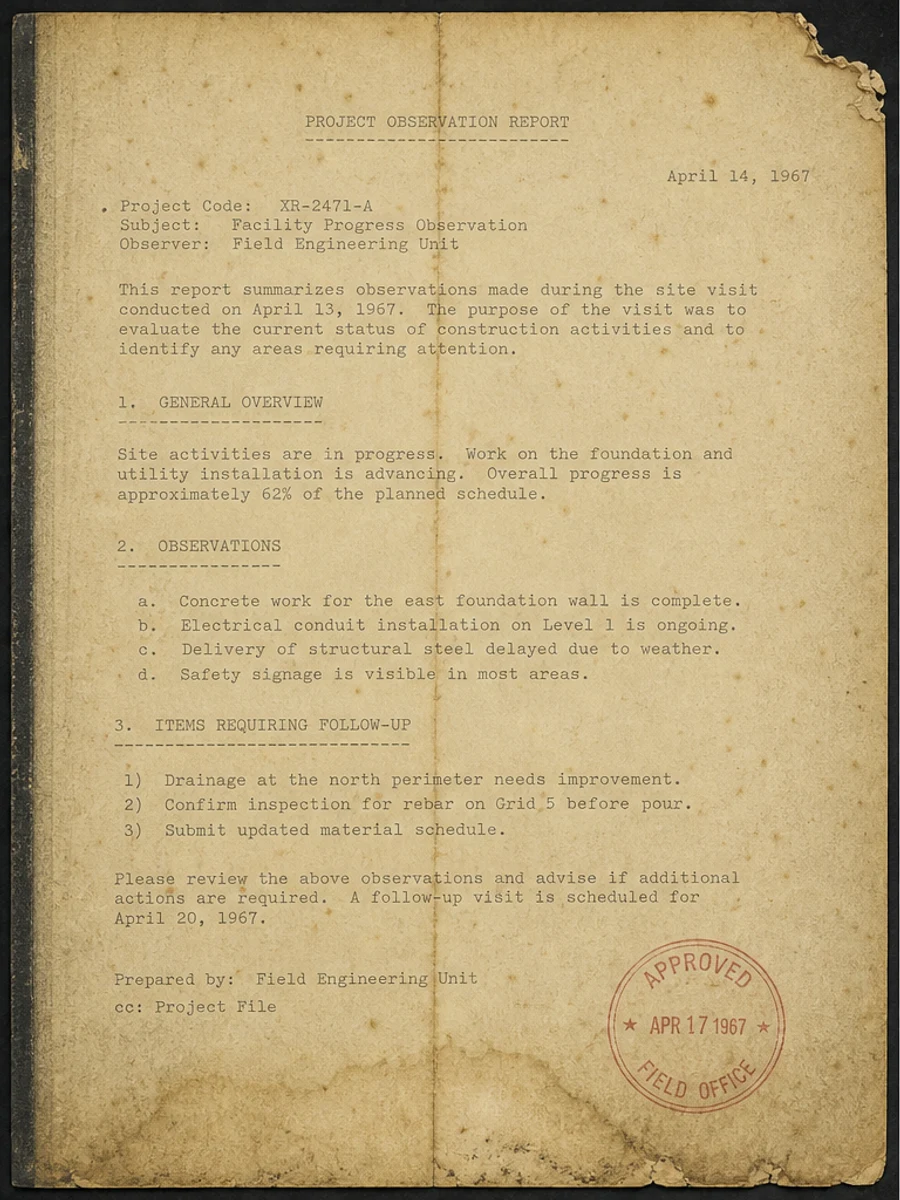
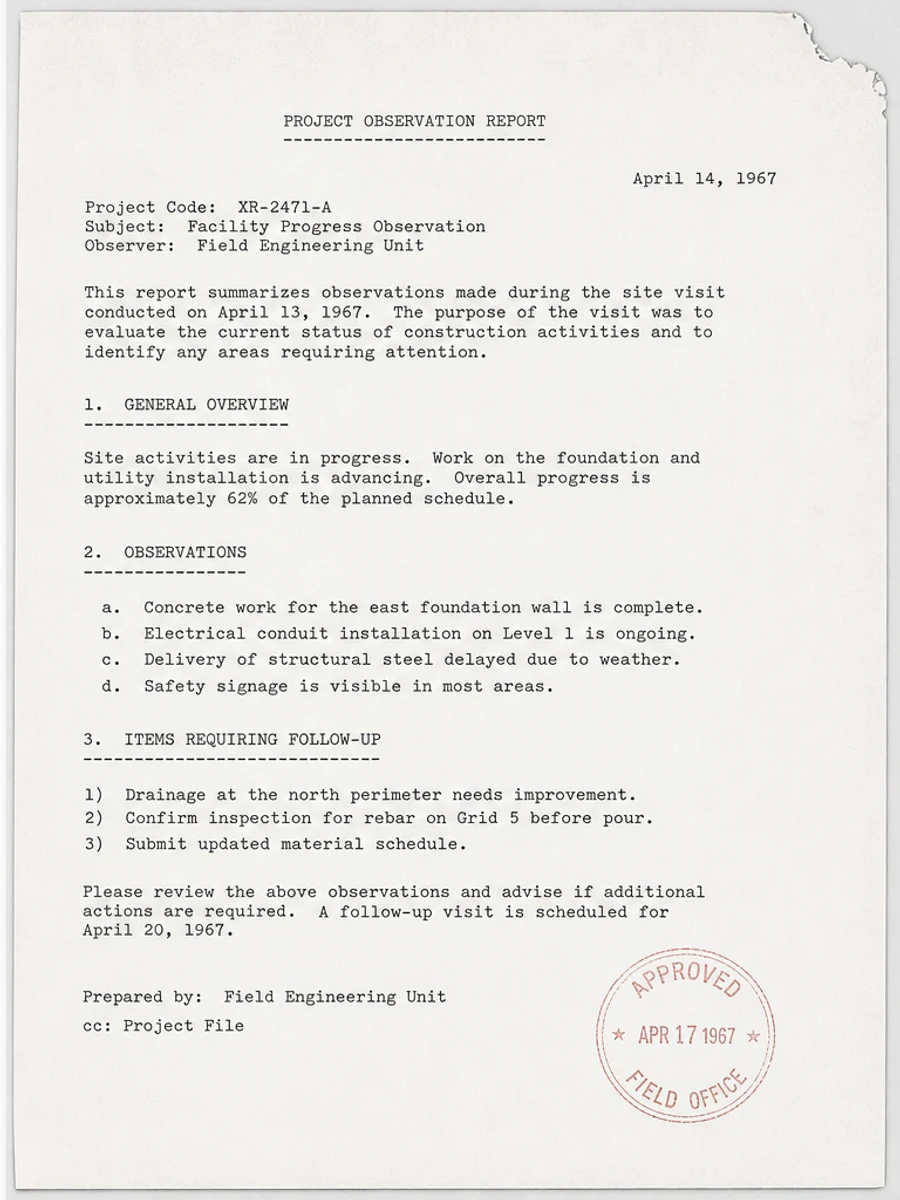
Inline before and after example: Fix a faded scanned PDF page
Step-by-step tutorial
- Identify the faded text areas.
- Choose a darkening prompt.
- Reduce background noise at the same time.
- Check images and stamps.
- Review numbers and names.
- Export a cleaned copy.
Prompts you can paste
01Darken the faded text, reduce background speckles, keep handwriting and stamps intact, and preserve the original page layout.
02Improve text contrast on this pale scan without rewriting any content or changing spacing, margins, tables, or marks.
03Use a conservative darkening pass. Make weak text easier to read, but avoid making stains, paper texture, or compression noise too dark.
When RedesignPDF is a good fit
- Pale photocopies where text is still visible
- Receipts and forms with weak but readable print
- Old typed or handwritten pages needing visual contrast
When it is not the right tool
- Recovering text from a blurred or blank scan
- Making a perfect editable transcript
- Changing the document wording
Common mistakes
- Over-sharpening until background noise looks like text.
- Darkening stamps or stains so much that they distract from content.
- Skipping review of numbers and handwritten entries.
Related reading
FAQ
Can RedesignPDF recover unreadable text?
It can improve visible text, but it cannot reliably recover characters that are too blurred, cropped, or missing from the scan.
Can I use the result for OCR?
You can export the cleaned image-based PDF and then run OCR separately, but OCR accuracy still needs review.
Will this change my page layout?
The prompt should ask to preserve layout. Always compare the result with the original before exporting.
Conclusion
If your goal is a clearer scanned PDF while keeping the original layout, start with a conservative prompt, process one page, and review text, tables, numbers, handwriting, and stamps before exporting. If you need editable text, PDF-to-Word conversion, form filling, or precise text-layer editing, use OCR, a PDF editor, or a better rescan instead.
Upload scanned PDF